For Managers: How the Public Finds You
How trail users discover your trail system, create public accounts, and subscribe, and how you can subscribe yourself.
Anyone can view your trail system without an account. To receive your alerts, a trail user needs a free public user account, which is separate from your trail manager account, and must subscribe to your trail system. There is no limit to how many trail systems a public user can subscribe to.
#Where people find your trail system
- Browsing the all trail systems map on trailhub.org
- Your embedded trail system on your own website
- Your direct link in emails, texts, and social media
- Your QR code on signs, brochures, and business cards
- Your digital signage screens
Once someone subscribes, every update you post with Notify Subscribers switched on reaches them by email and/or SMS. See How subscriber alerts work.
#What the public sees
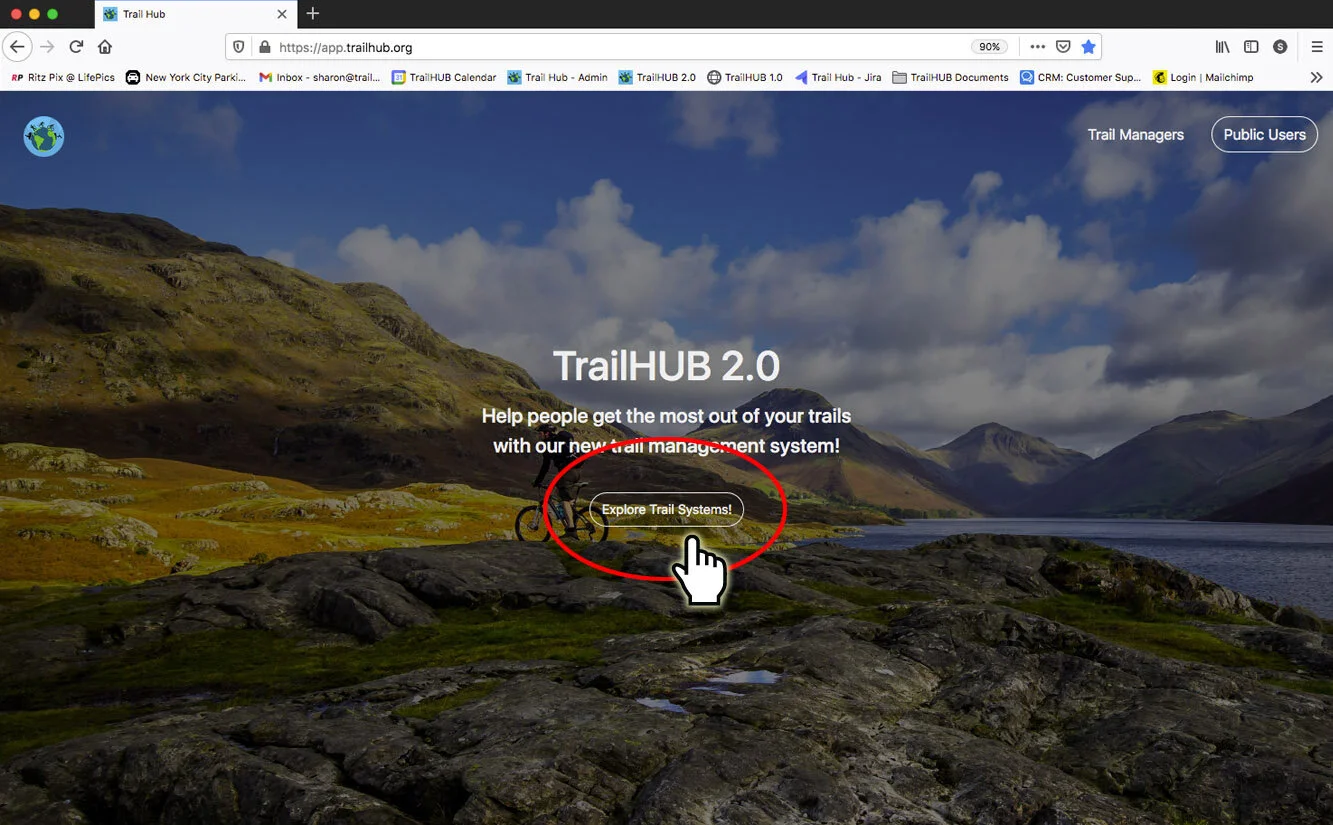
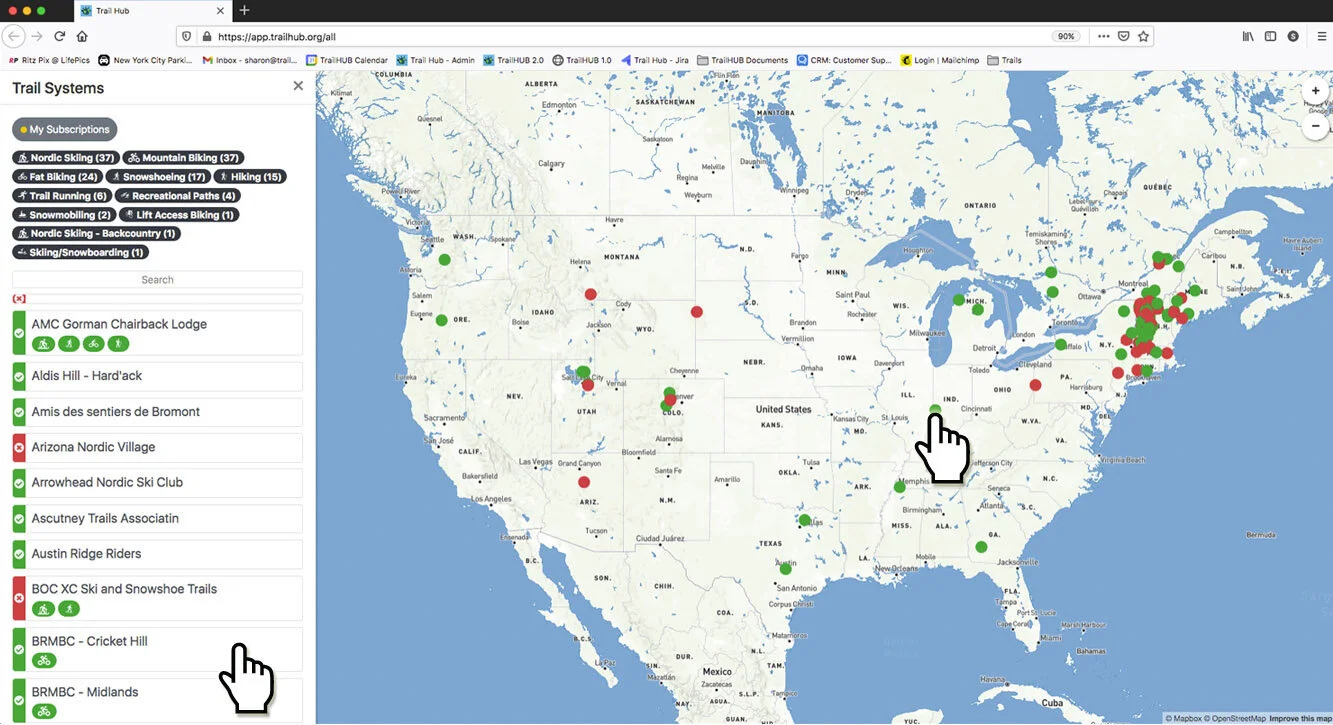
- On the TrailHUB homepage, Explore Active Trail Systems opens the all trail systems map.
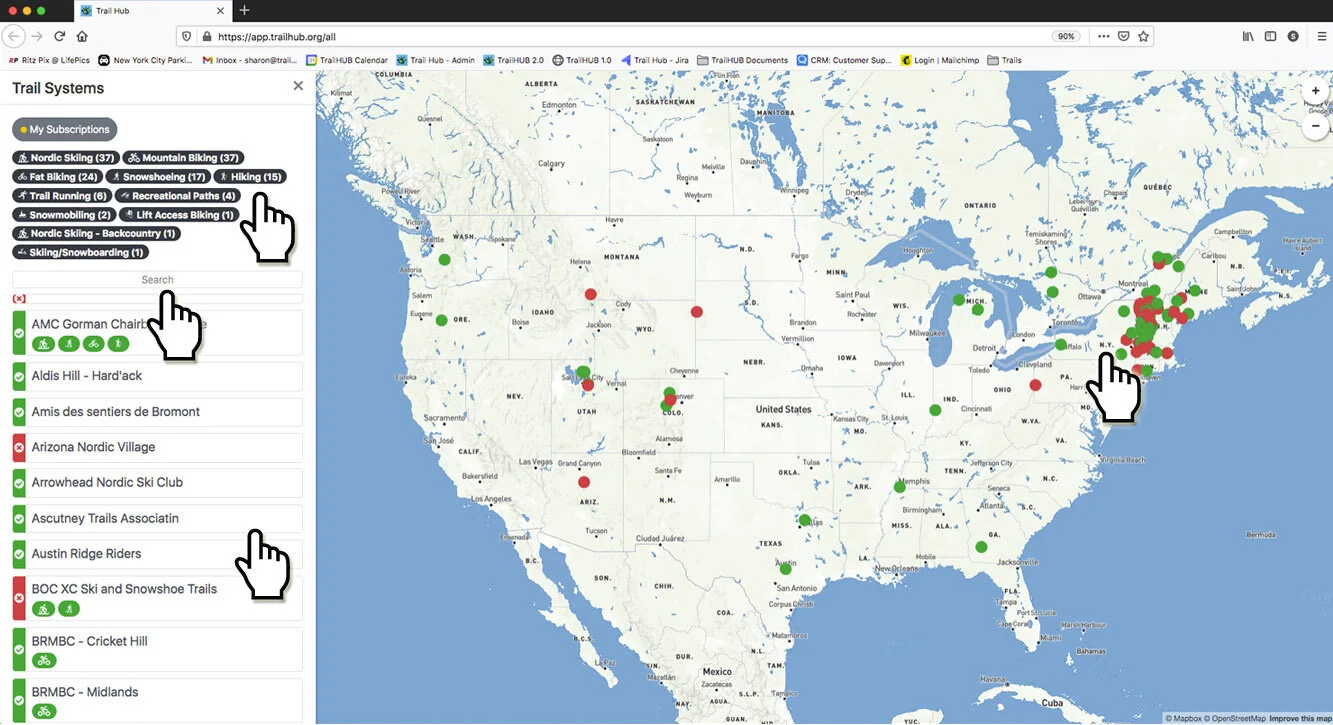
The side panel lists every active trail system as TrailHUB Customers.
Users can find yours by scrolling the list, using the search field, selecting an activity, or clicking the map.
- Selecting a trail system opens it in a new browser tab.
#How the public signs up
There are two ways into a public account:
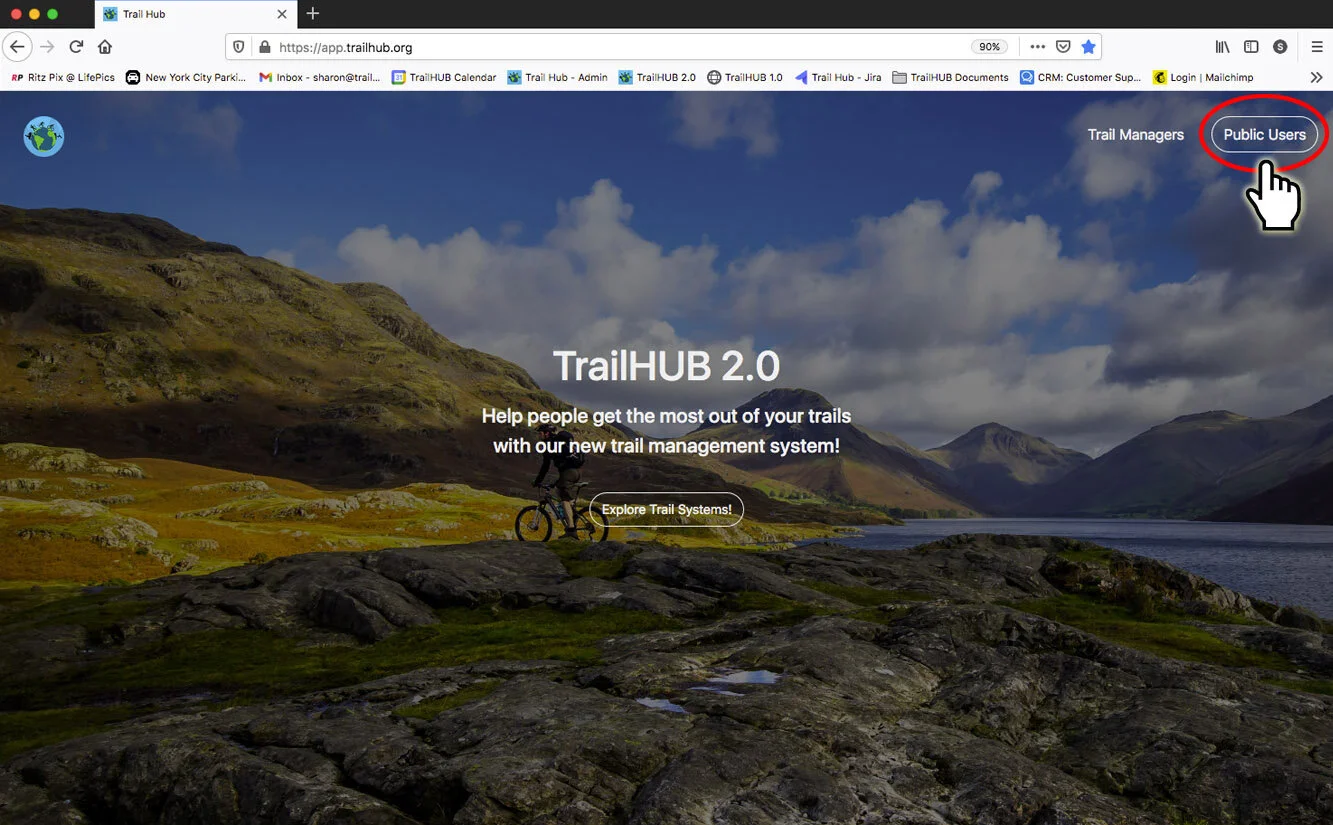
- From the homepage, by selecting Public Users in the top navigation bar and filling out the sign-up form (see Create a public account).
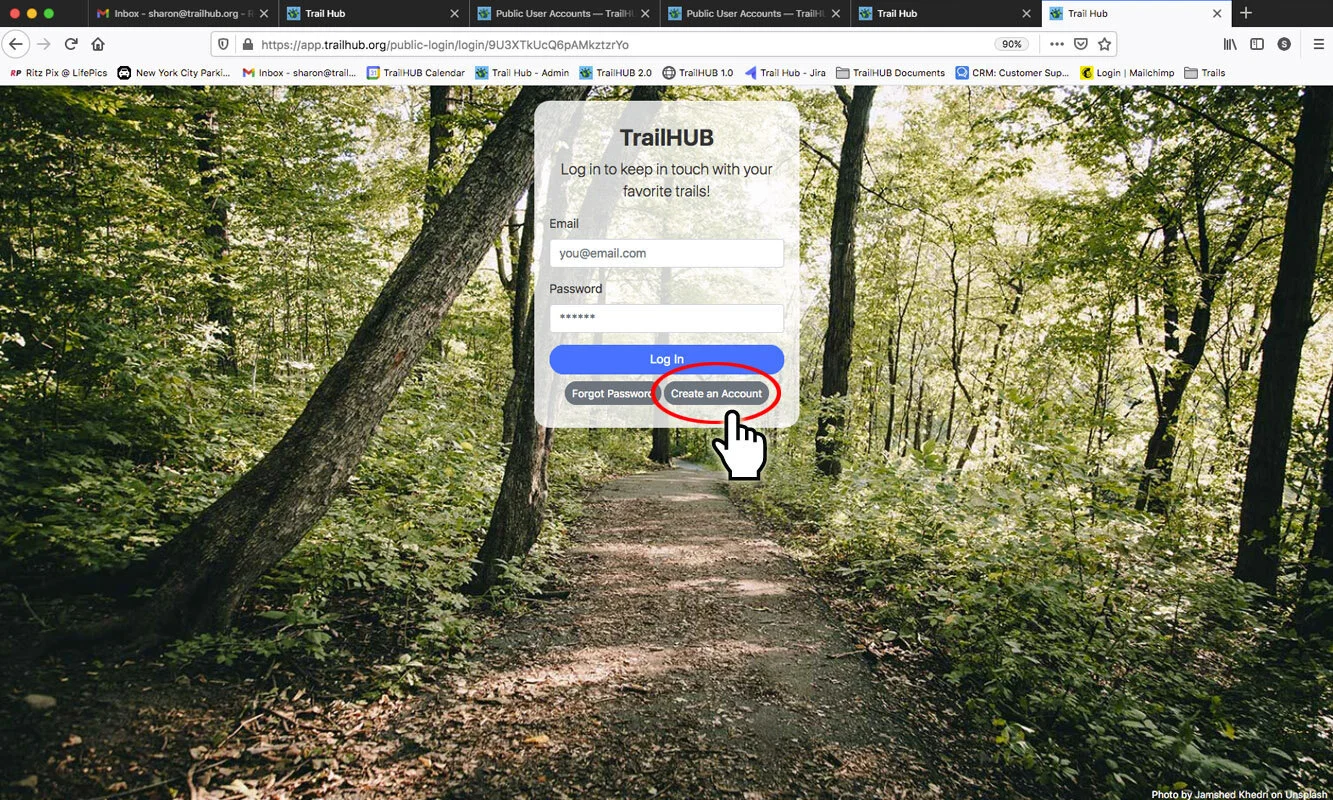
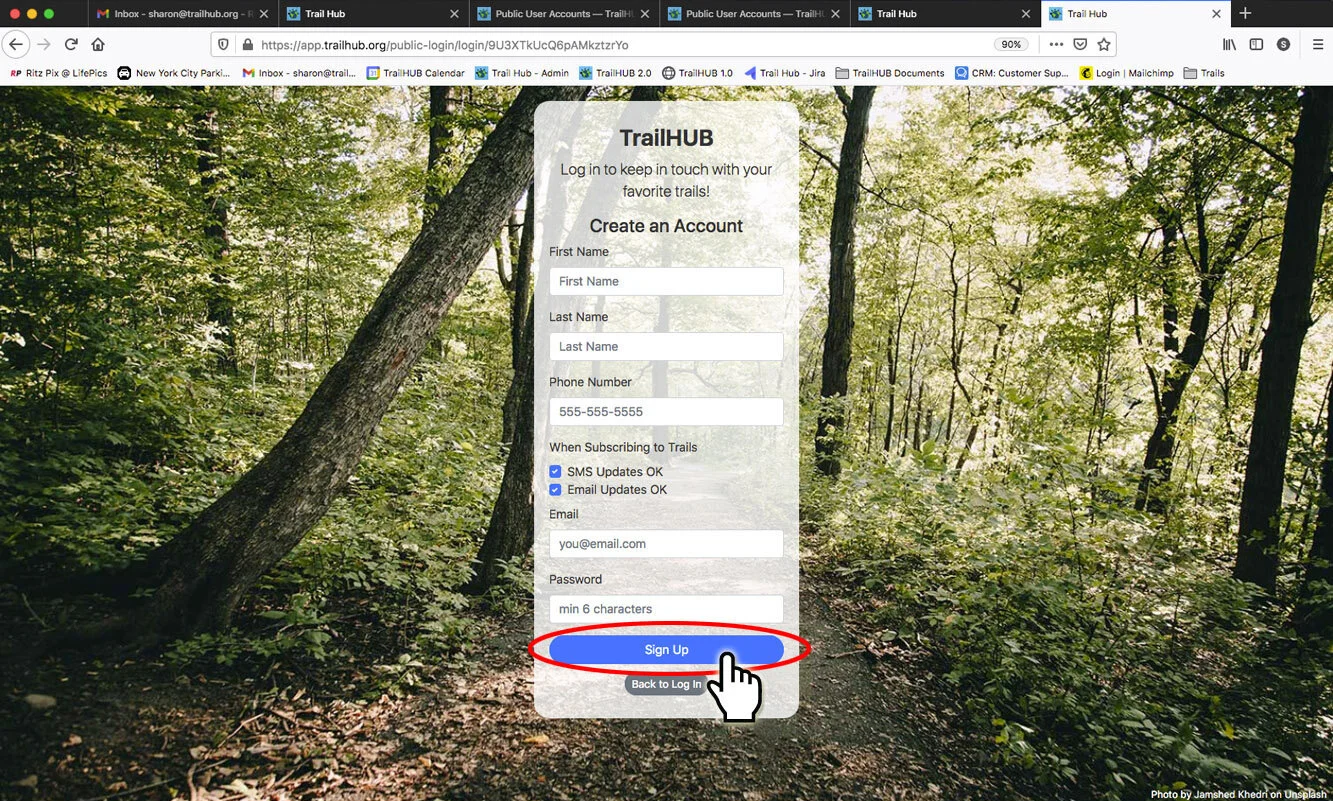
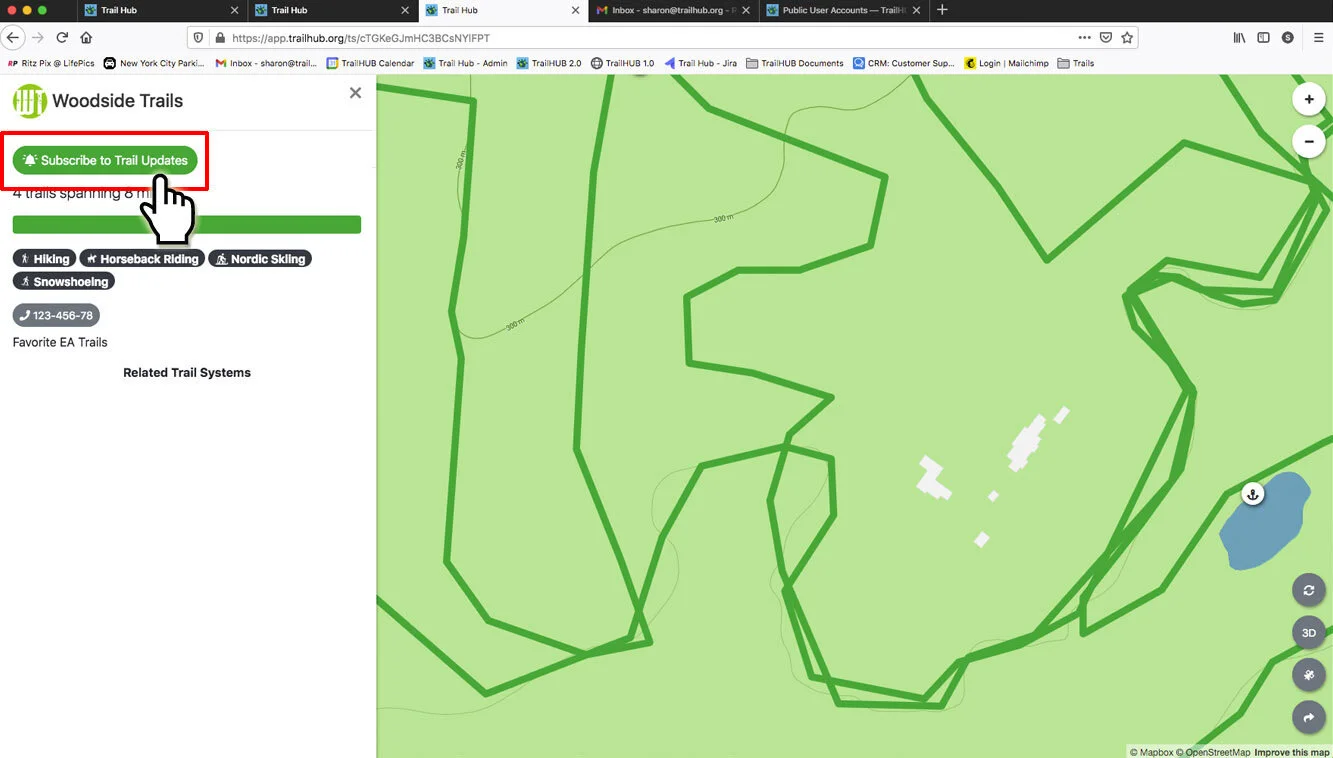
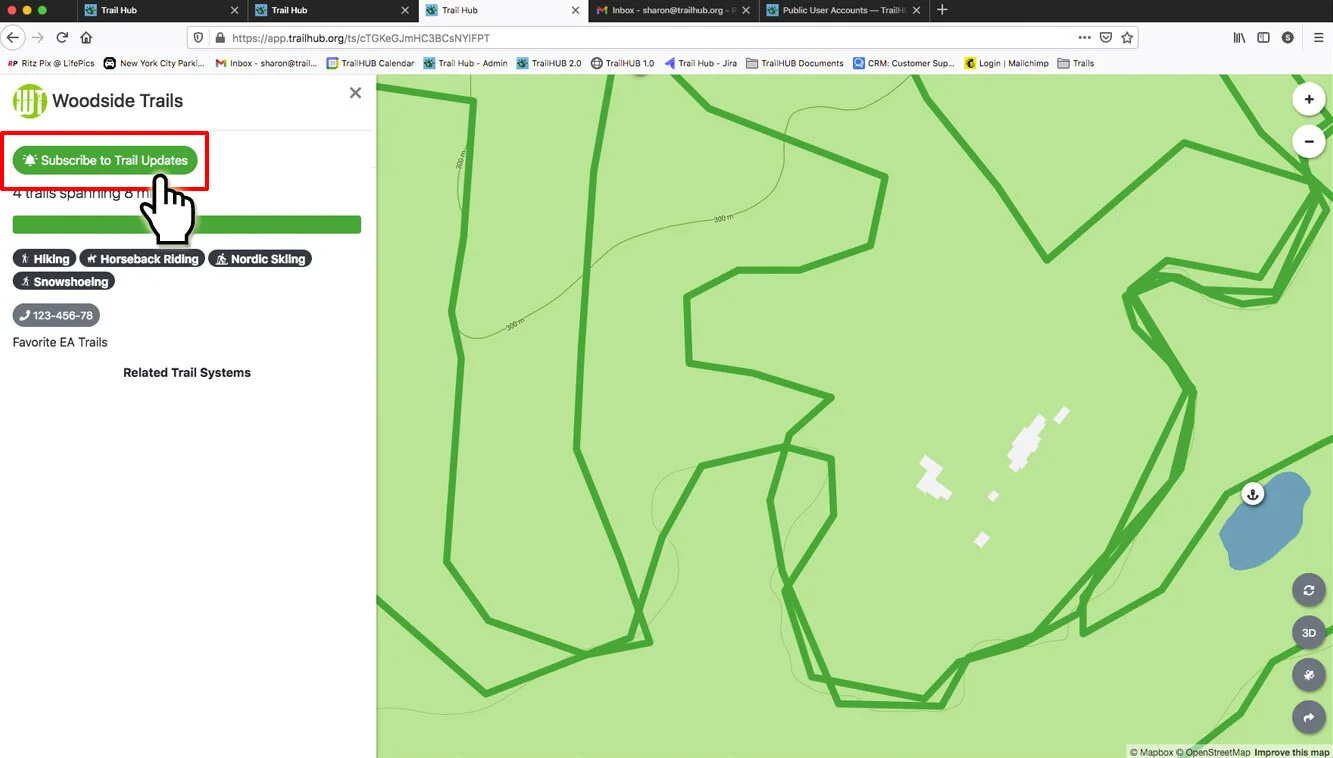
- From your trail system page. A visitor who selects Subscribe to Trail Updates without a public account is sent to the public login page to sign in or create an account, and then returned to your trail system to finish subscribing. This is the easiest path to promote, since it starts from your own link, embed, or QR code.
#Subscribing as a trail manager
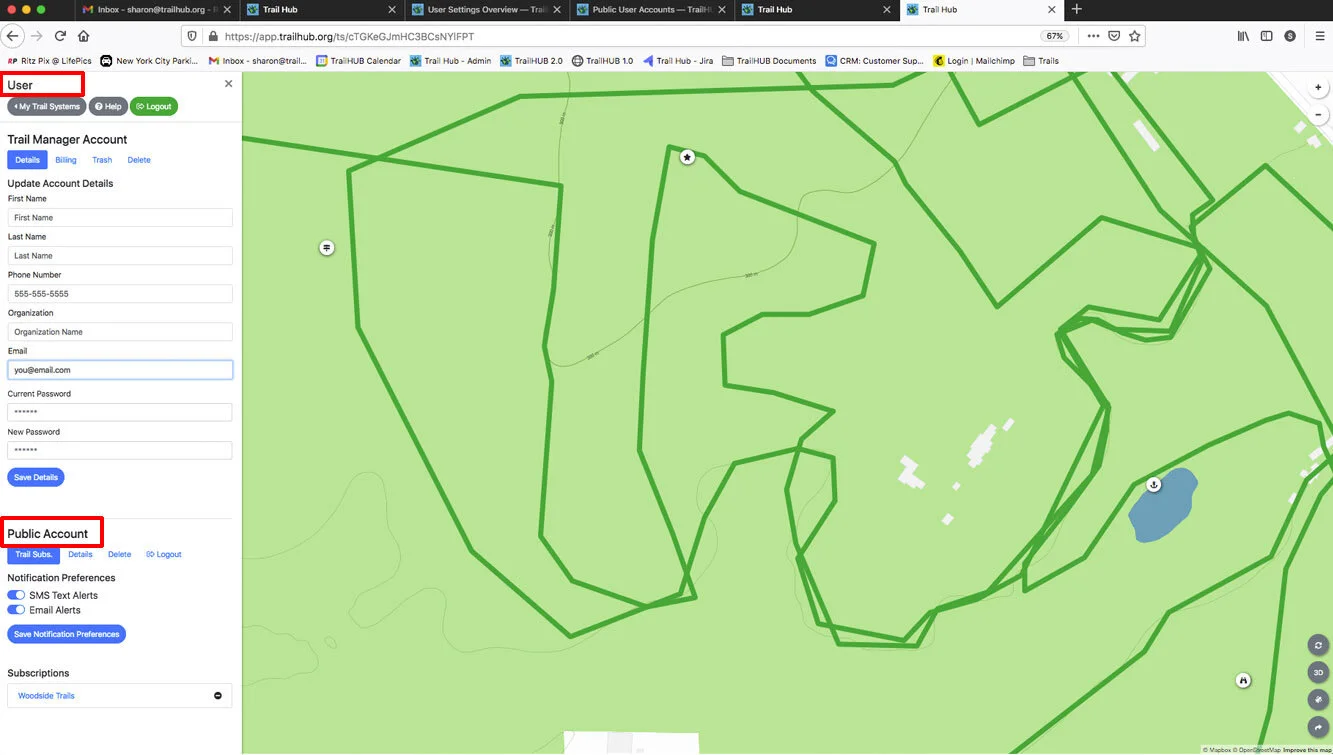
Trail manager accounts cannot subscribe to alerts. If you want to receive your own (or any other) trail system's notifications, create a public account at the public login page or from User Settings while logged in as a trustee. You can use the same email address for both accounts.
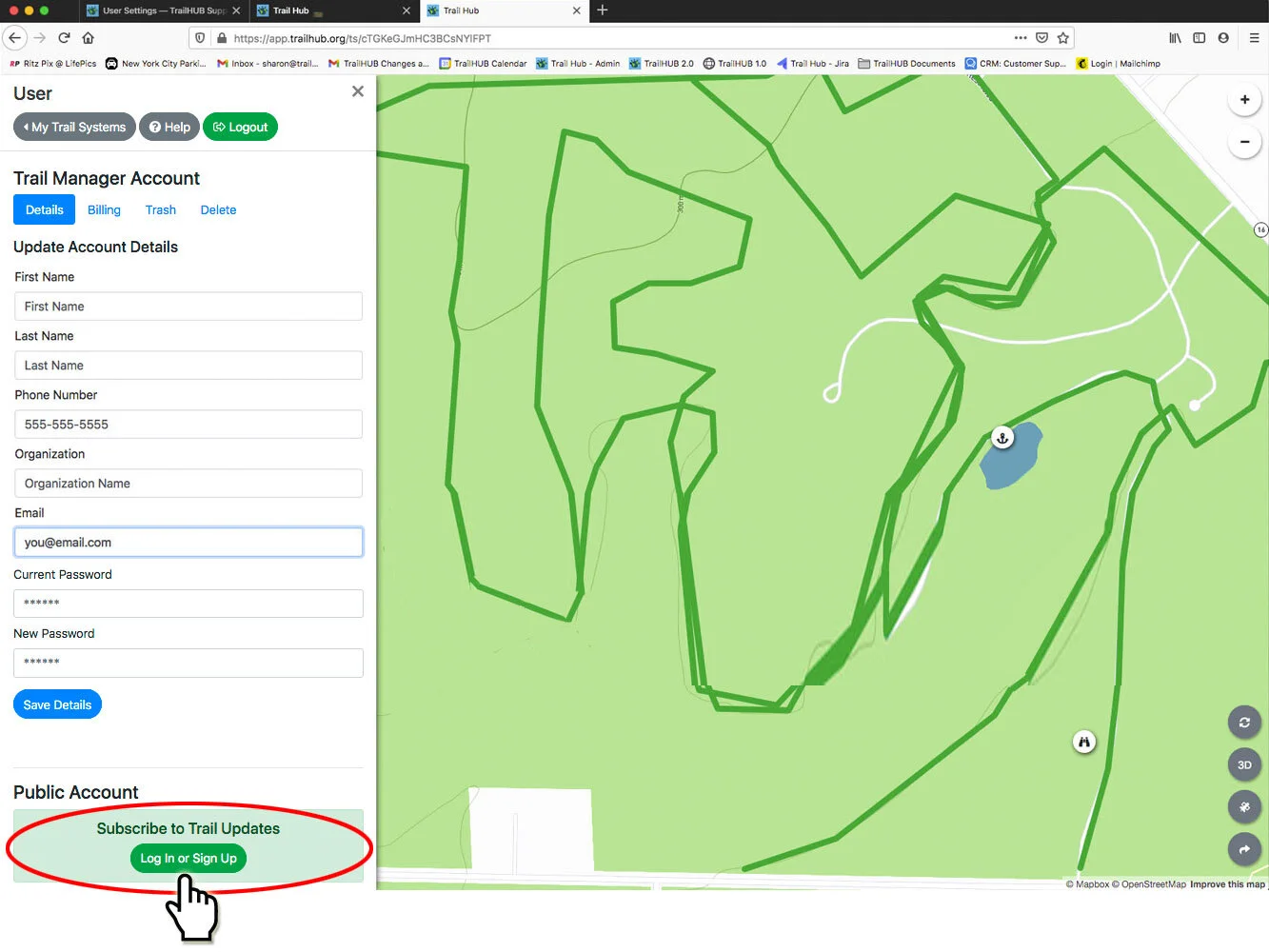
You can be logged in to your manager account and your public account at the same time; User Settings shows both.
#Using a public account
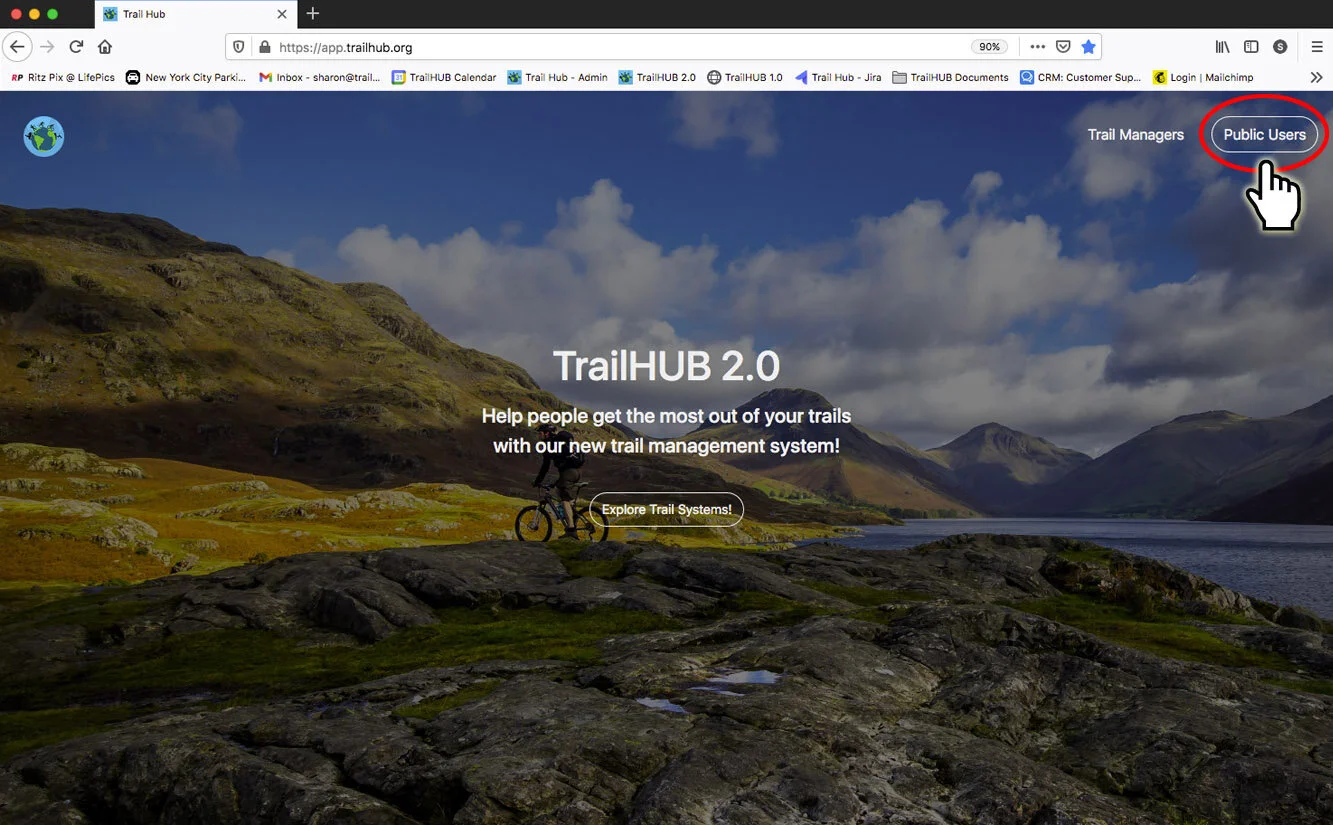
- Sign in by selecting Public Users in the upper right of the homepage.
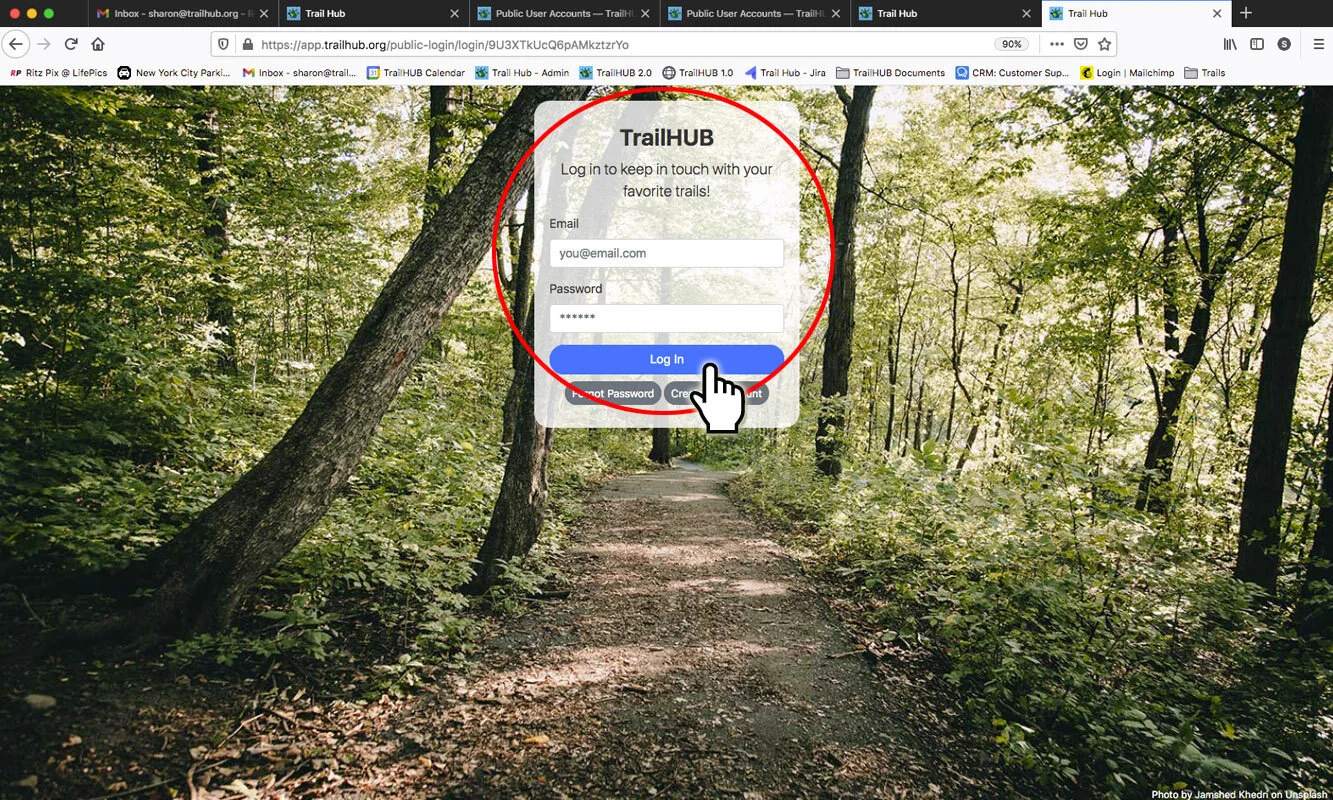
After signing in you land on the all trail systems map, with the side panel listing every active trail system.
Find a trail system by scrolling the list, using the search field, selecting an activity, or clicking the map.
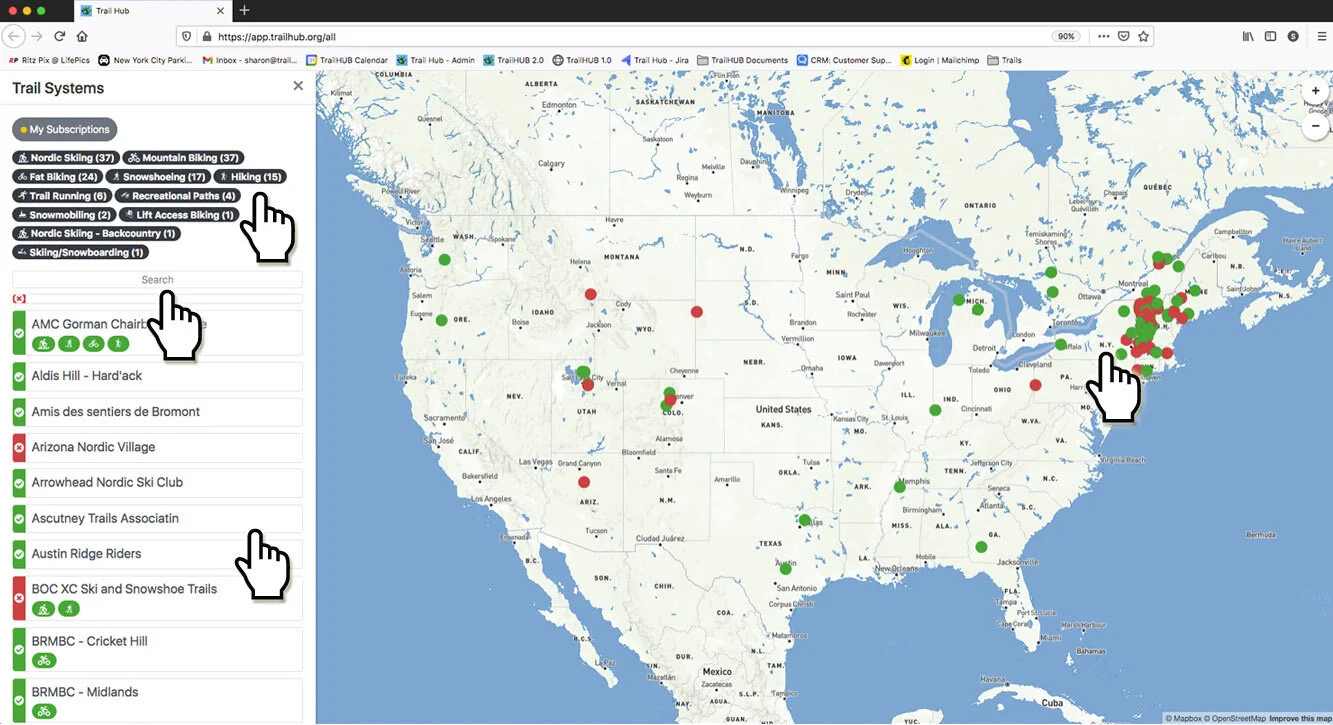
- Select a trail system's name in the list or its dot on the map to open it in a new browser tab.
#Subscribe
Open the trail system you want to subscribe to.
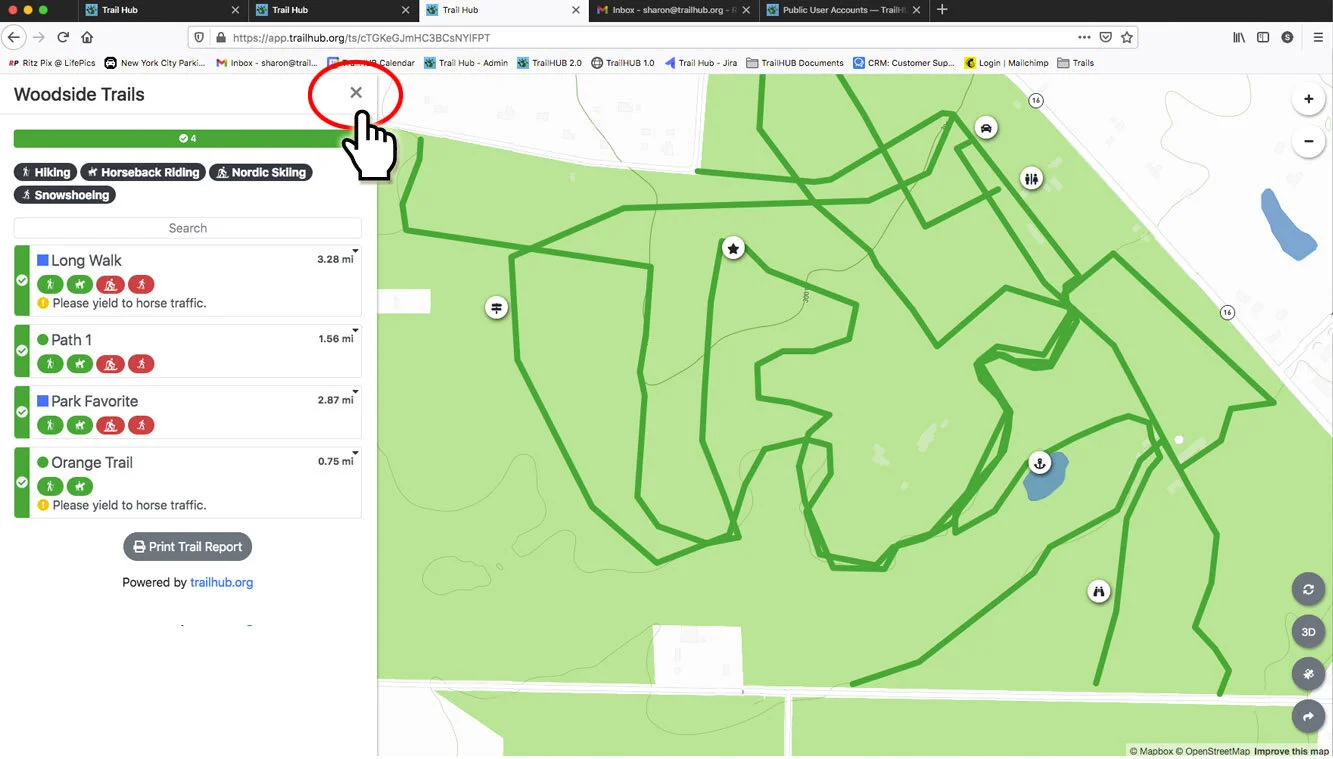
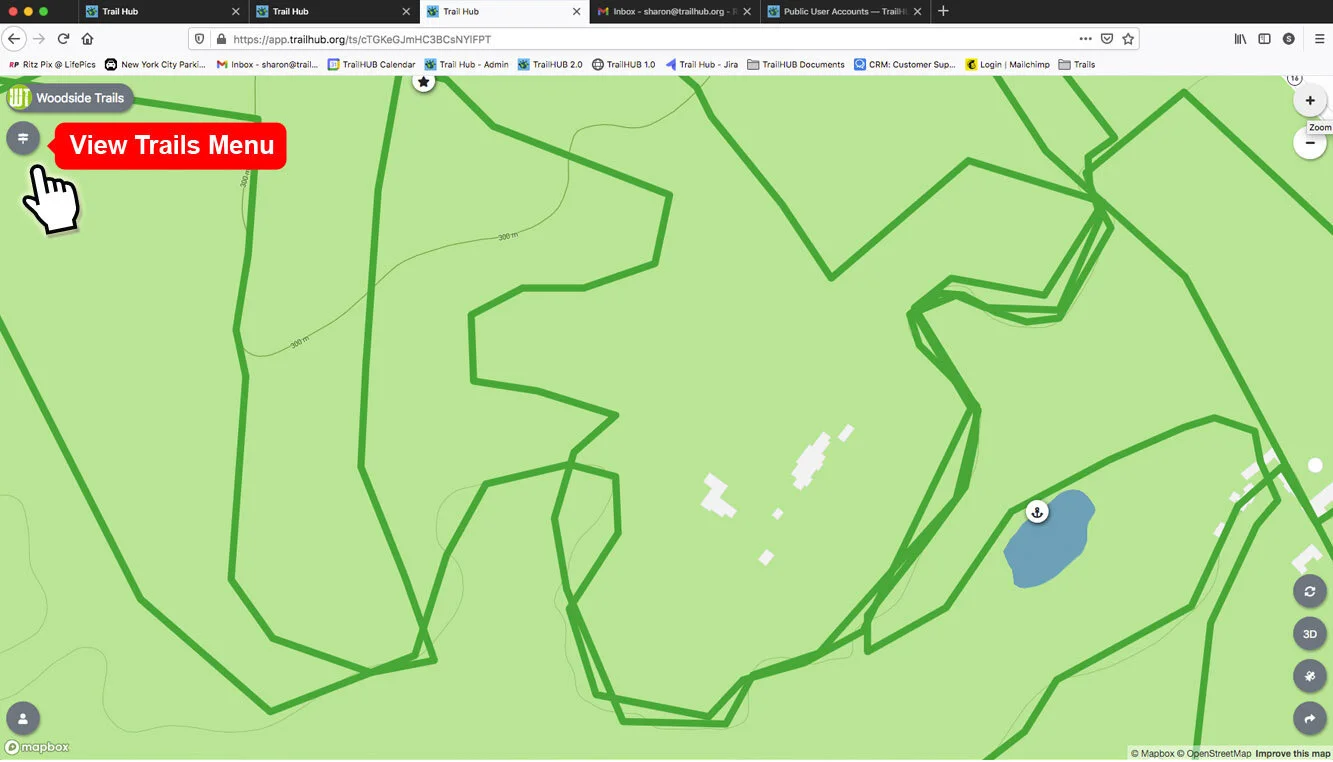
Close the trails panel, then select the trail system's name in the upper left to open its details.
- Select Subscribe to Trail Updates.
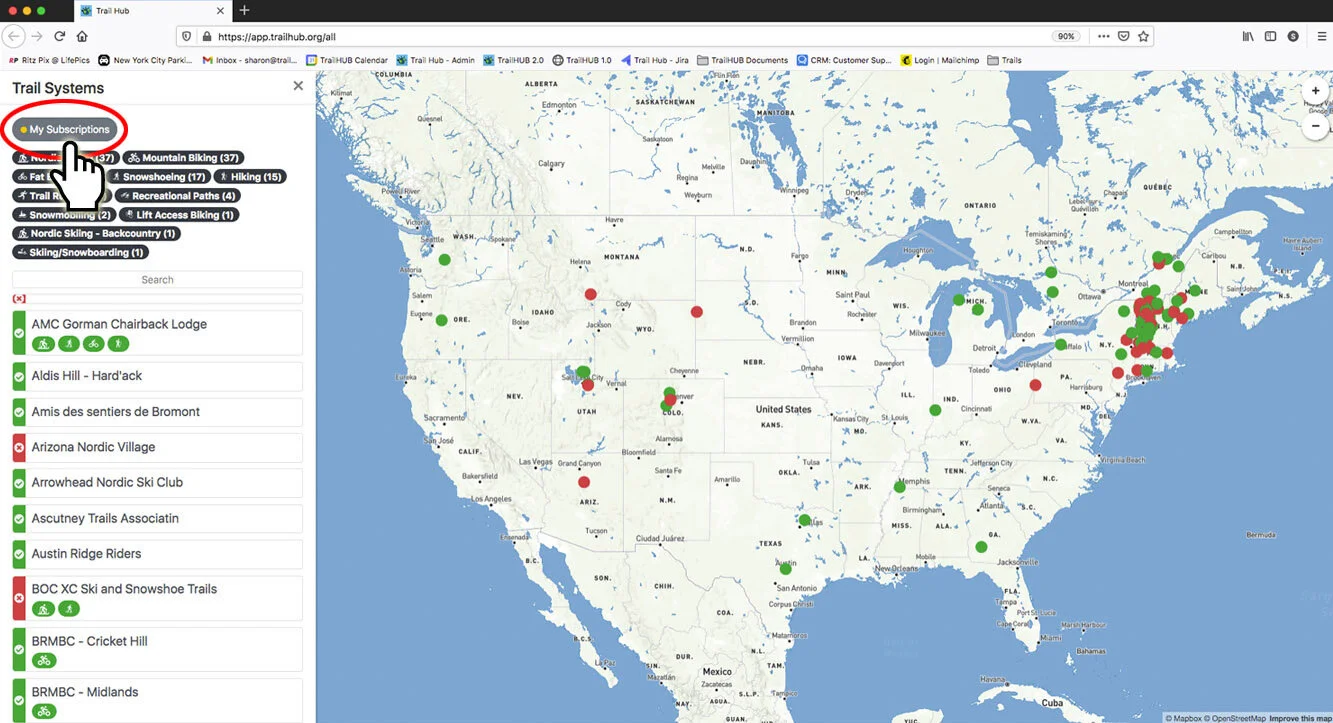
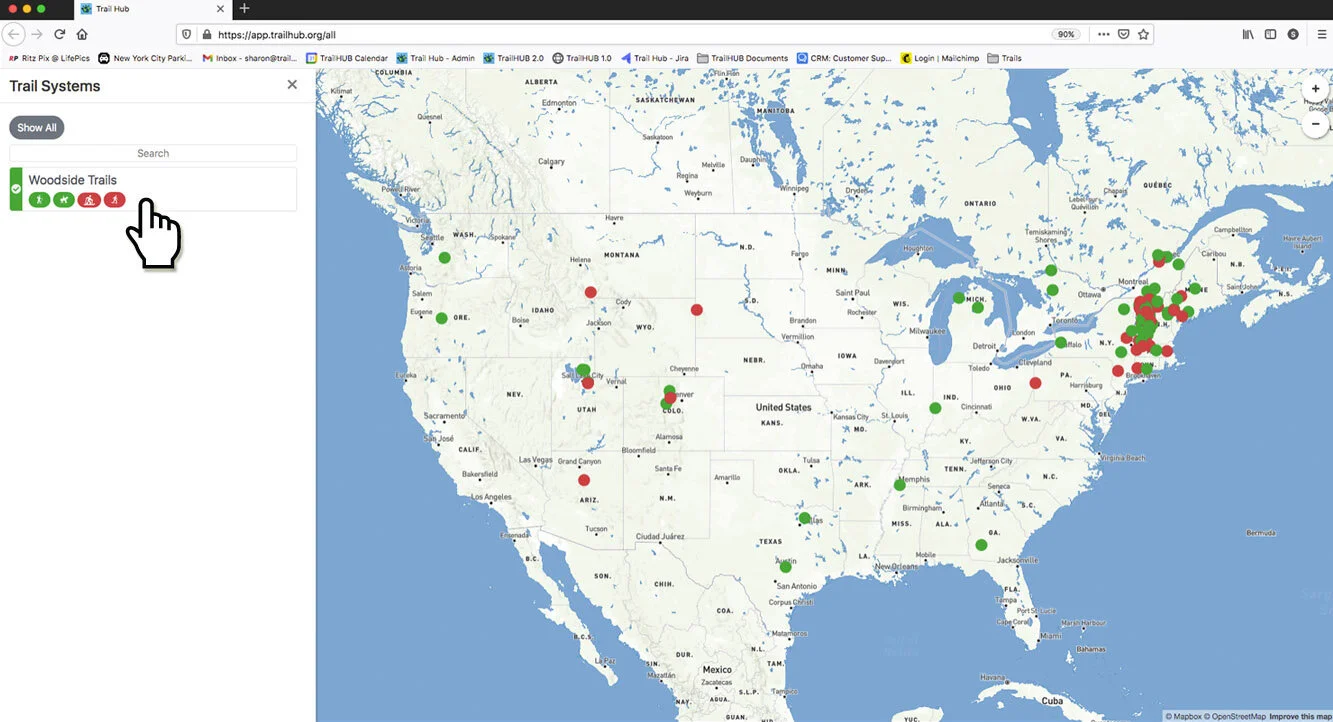
- Back on the all trail systems map, My Subscriptions in the side panel now lists the trail system. Refresh the page if it does not appear.
#Unsubscribe
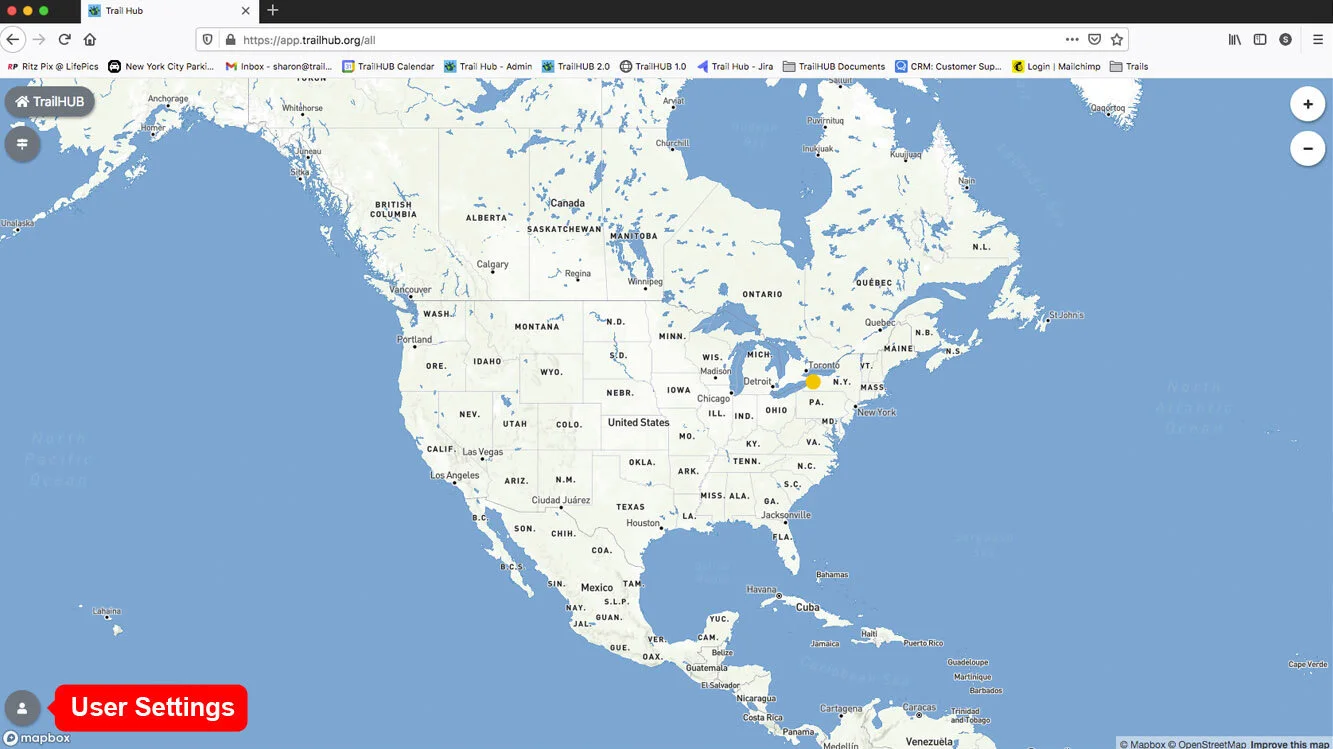
- Open User Settings in your public account.
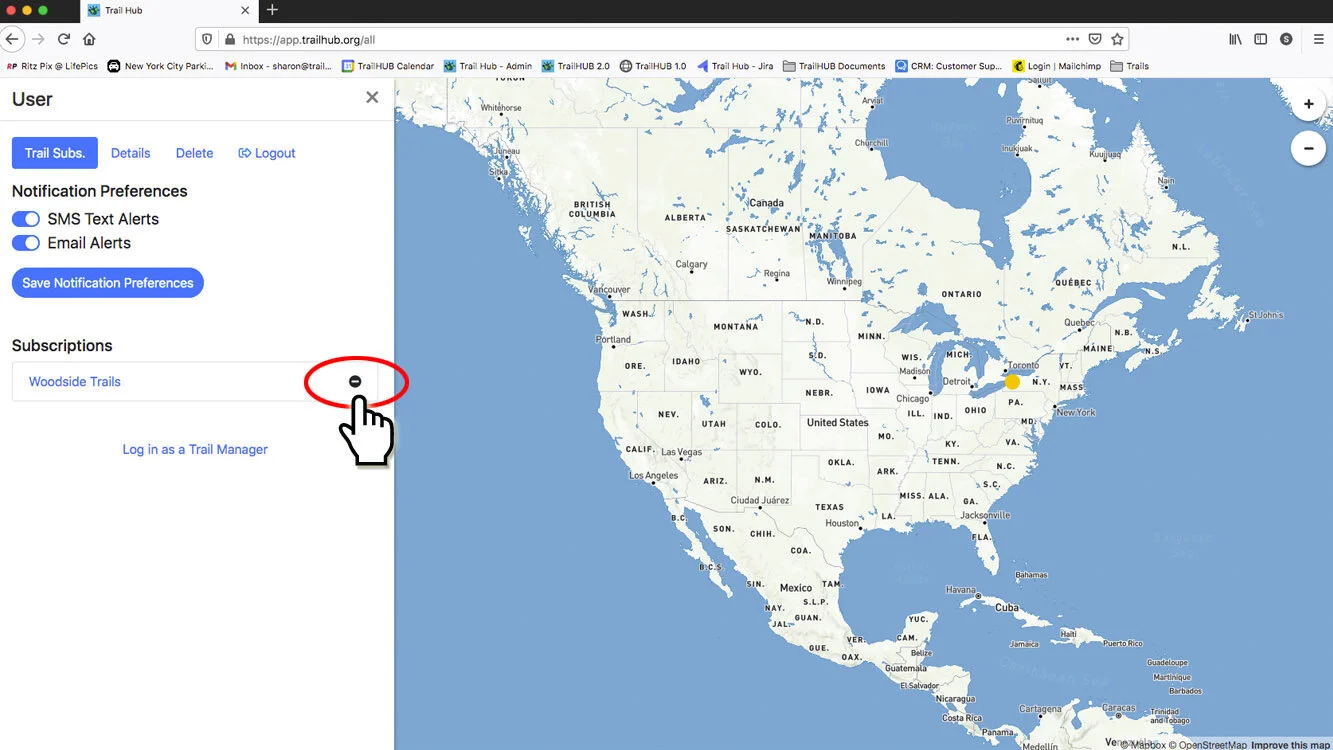
- Select the minus icon to the right of the trail system to remove it immediately.
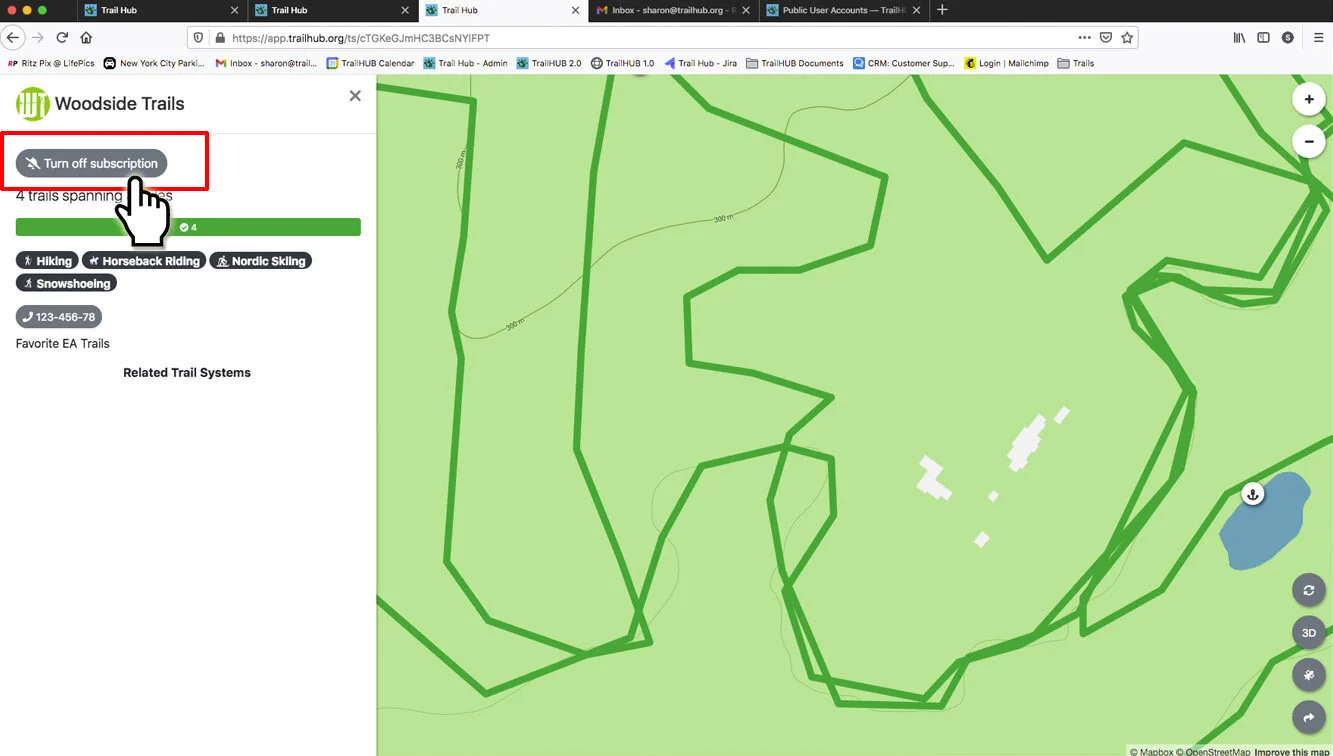
Or open the trail system's details and select Turn off subscription.