
Trustees and Administrators
Invite other TrailHUB manager accounts to help run a trail system, choose their role, and understand what owners, administrators and trustees can do.
A trail system can be managed by more than one person. The account that created it is the owner; anyone else is added as a trustee and given a role. Roles are set per trail system, so if you run more than one trail system you need to invite people to each one.
There is no limit on the number of trustees per trail system on any plan.
#Roles
| Owner | Administrator | Trustee | |
|---|---|---|---|
| Add, edit and change the status of trails, points and updates | Yes | Yes | Yes |
| Trash and restore trails and points | Yes | Yes | Yes |
| Open Trail System Settings (name, logo, units, categories, hide/inactive, trash trail system) | Yes | Yes | No |
| Manage Trustees | Yes | Yes | No |
| Open Calendars Settings (Double Diamond / Star) | Yes | Yes | No |
| Billing for the trail system | Yes | No | No |
The owner always acts as an Administrator and cannot be removed or demoted. Trustees who are invited start as Trustee and can be promoted to Administrator at any time. Everyone who can see the Updates menu can post notices, surface conditions and snow reports.
The plan and billing stay with the owner's account; trustees and administrators do not need their own subscription.
#Before you invite someone
The person must already have a TrailHUB trail manager account under the email address you will invite. Inviting an address that is not in the system shows a warning and nothing is added.
If they do not have an account yet, ask them to:
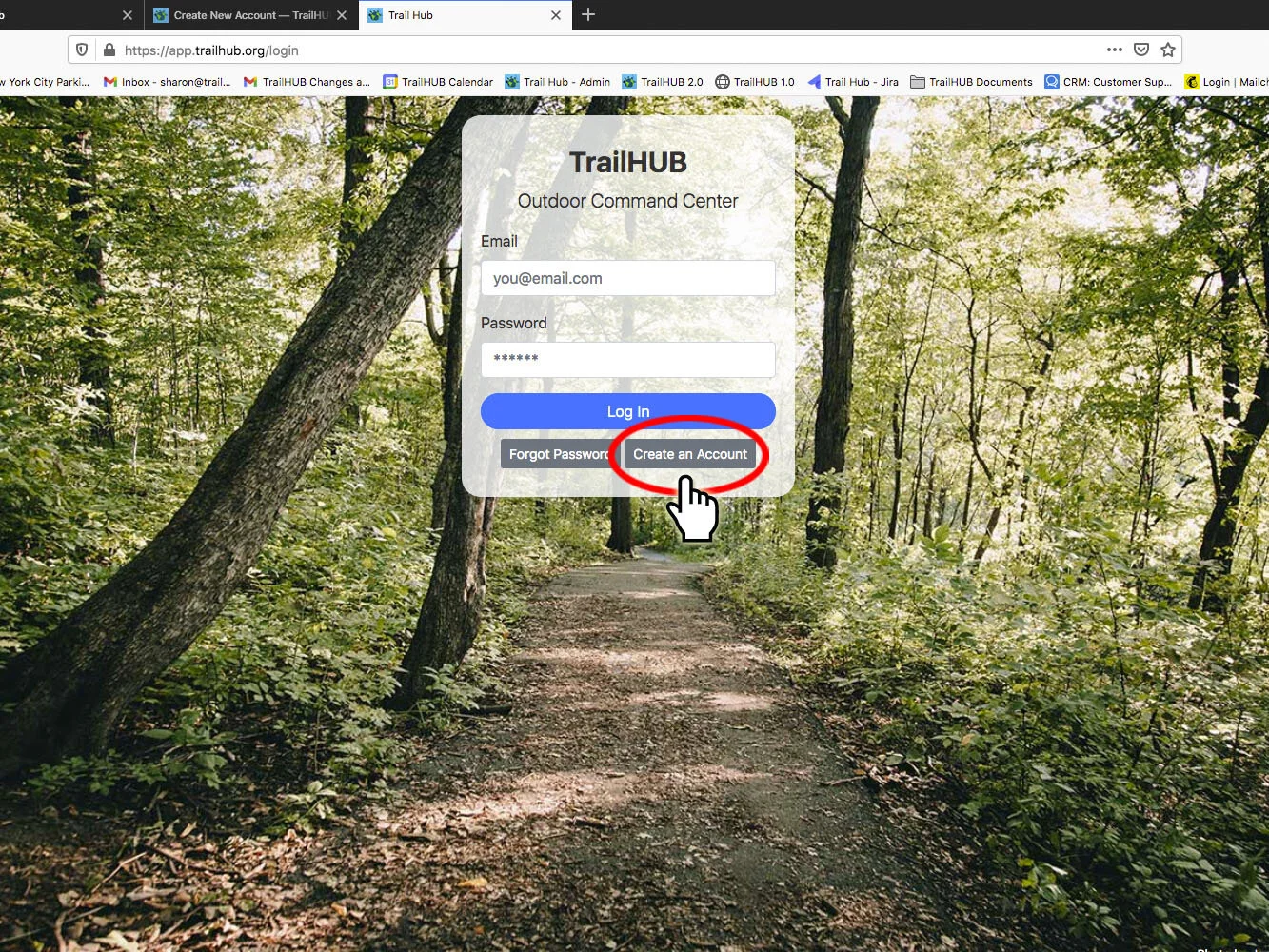
- Go to https://trailhub.org/login and select Create an Account. See Create a manager account.
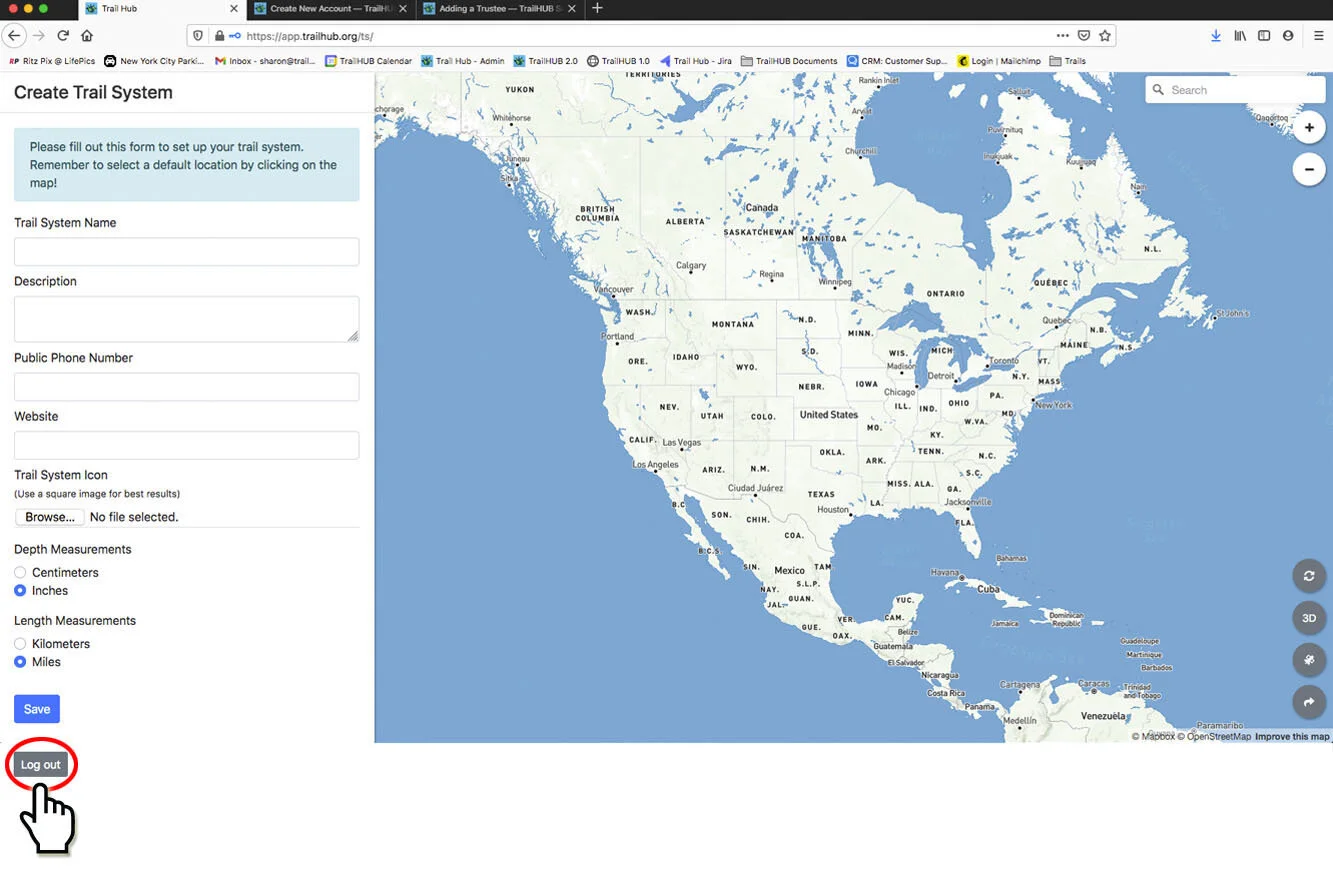
- When the Create Trail System form appears, select Log out at the bottom instead of filling it in. They do not need a trail system of their own.
- Tell you the email address they signed up with.
#Invite a trustee
You must be the owner or an Administrator of the trail system.
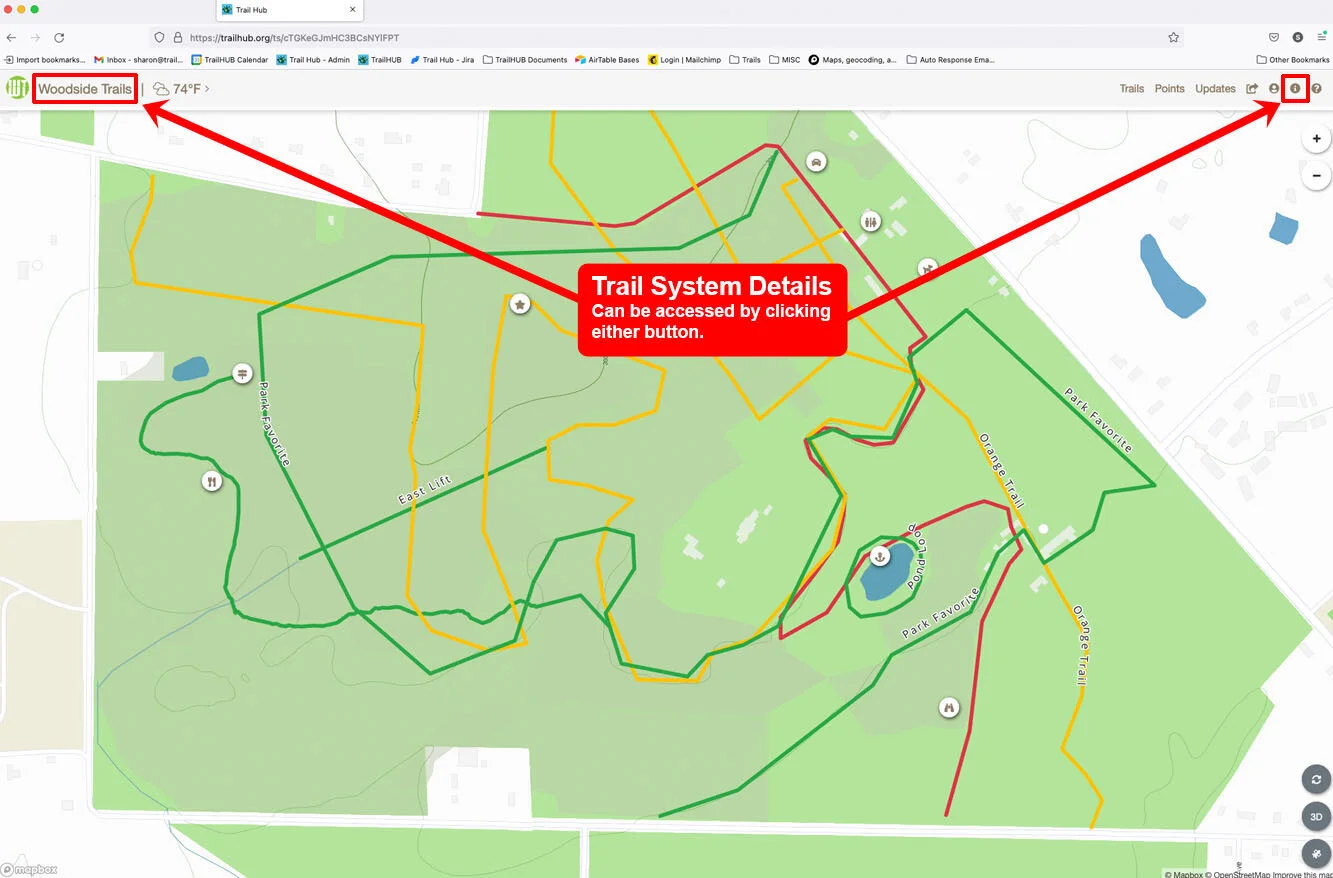
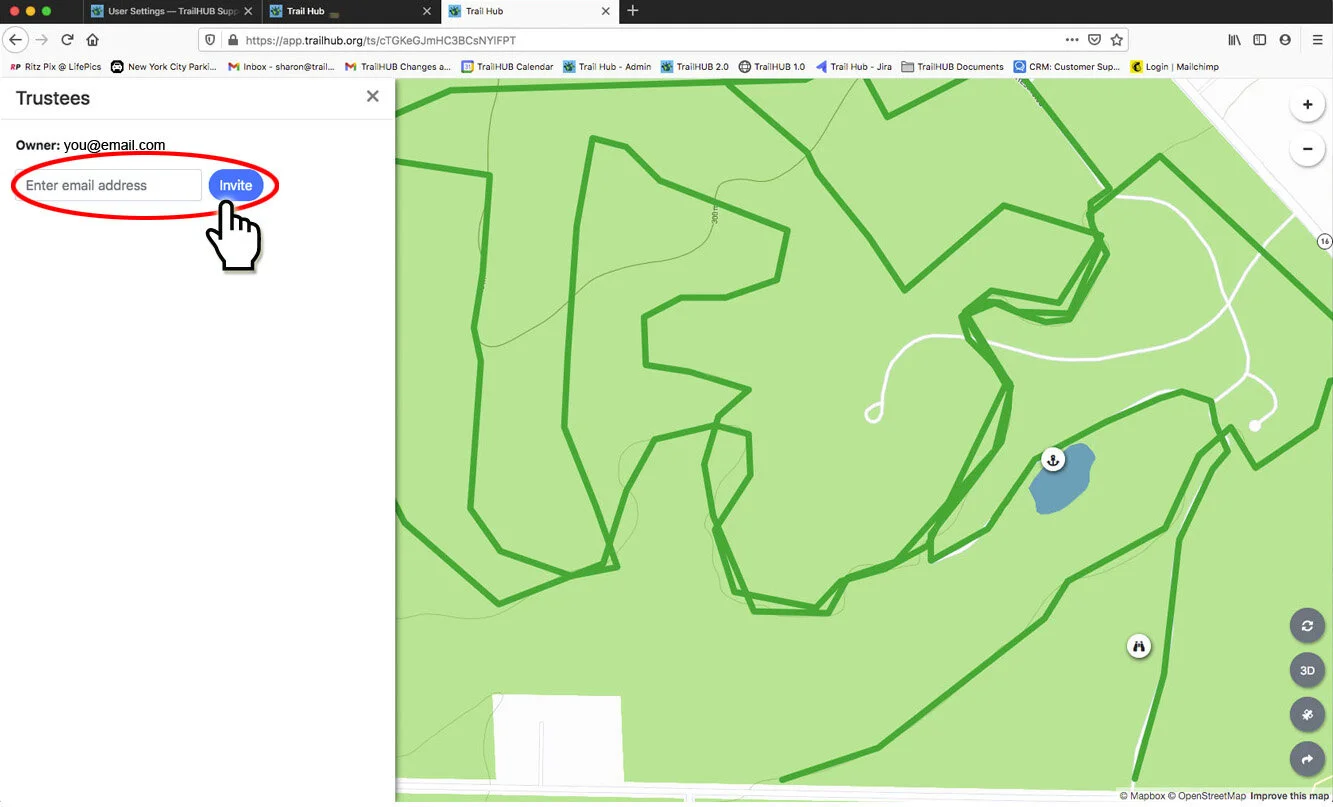
- Select Trail System Details in the navigation bar, then Trustees.
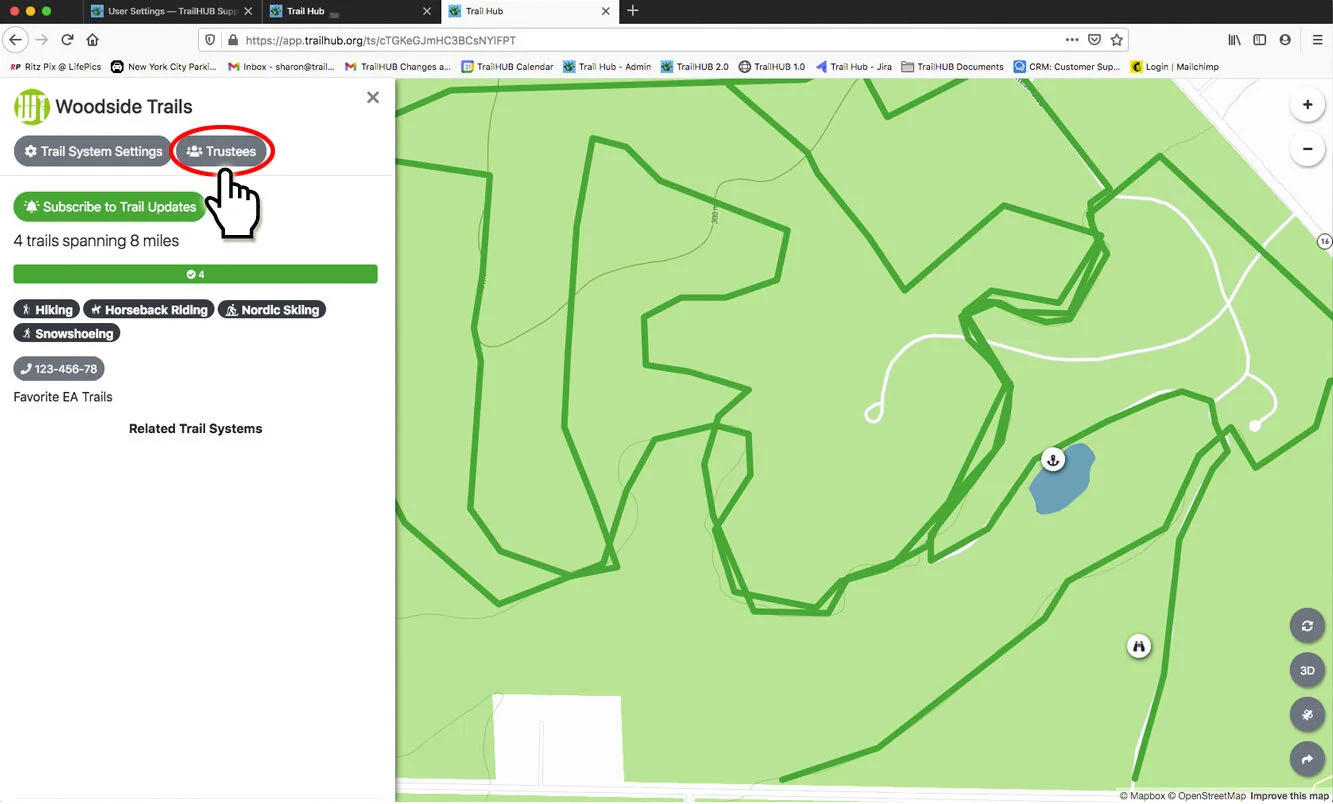
- Enter the person's email address and select Invite. They are added immediately with the Trustee role and receive a TrailHUB notification that you have added them to the trail system.
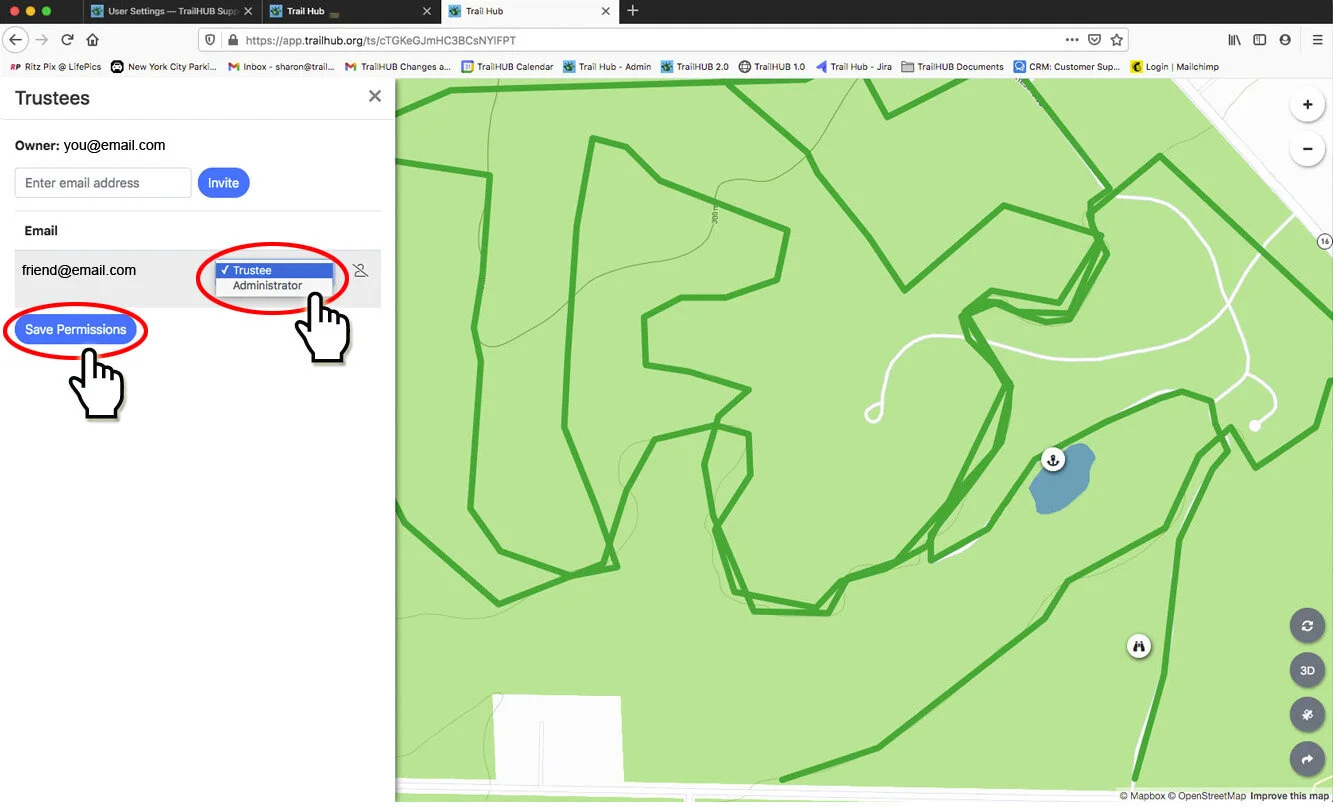
- To make them an Administrator, change the drop-down beside their email to Administrator and select Save Permissions. A "Permissions updated!" message confirms the change.
#Remove a trustee
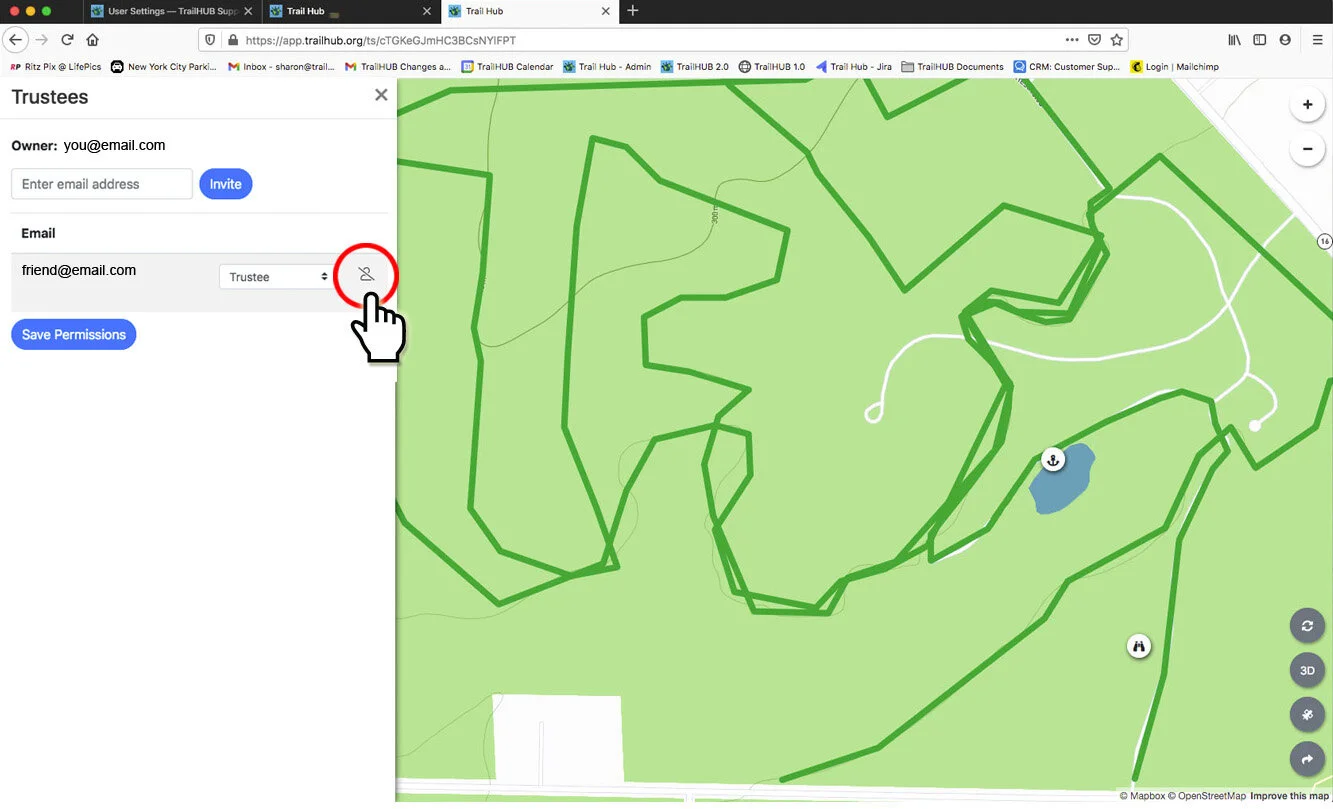
- In the Trustees panel, select the Remove Trustee icon at the right of the person's row.
- Confirm. The person loses access to the trail system straight away; their manager account is unaffected.
#For the new trustee: finding the trail system
Once you have been added:
- Log in at trailhub.org/login and select User Settings.
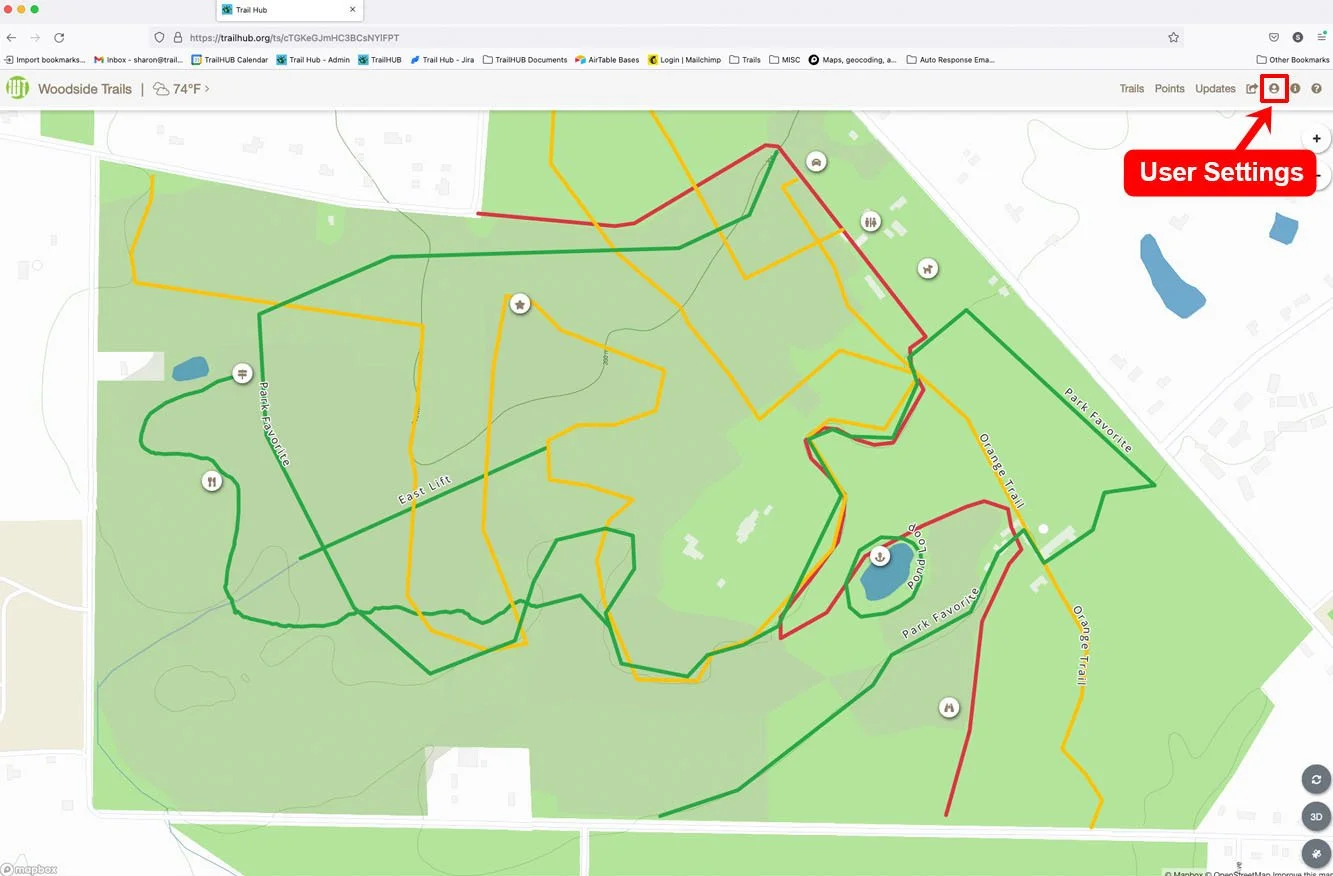
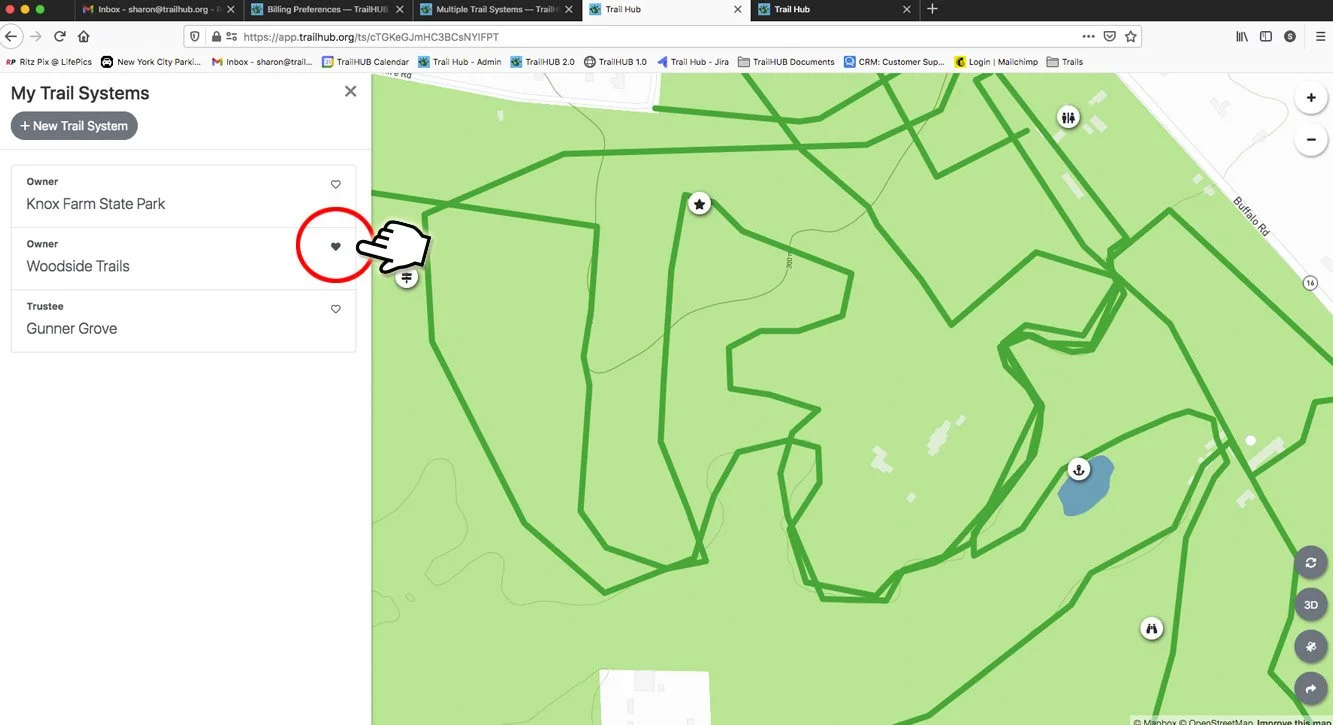
- Select My Trail Systems. The trail system you were invited to is listed with your role.
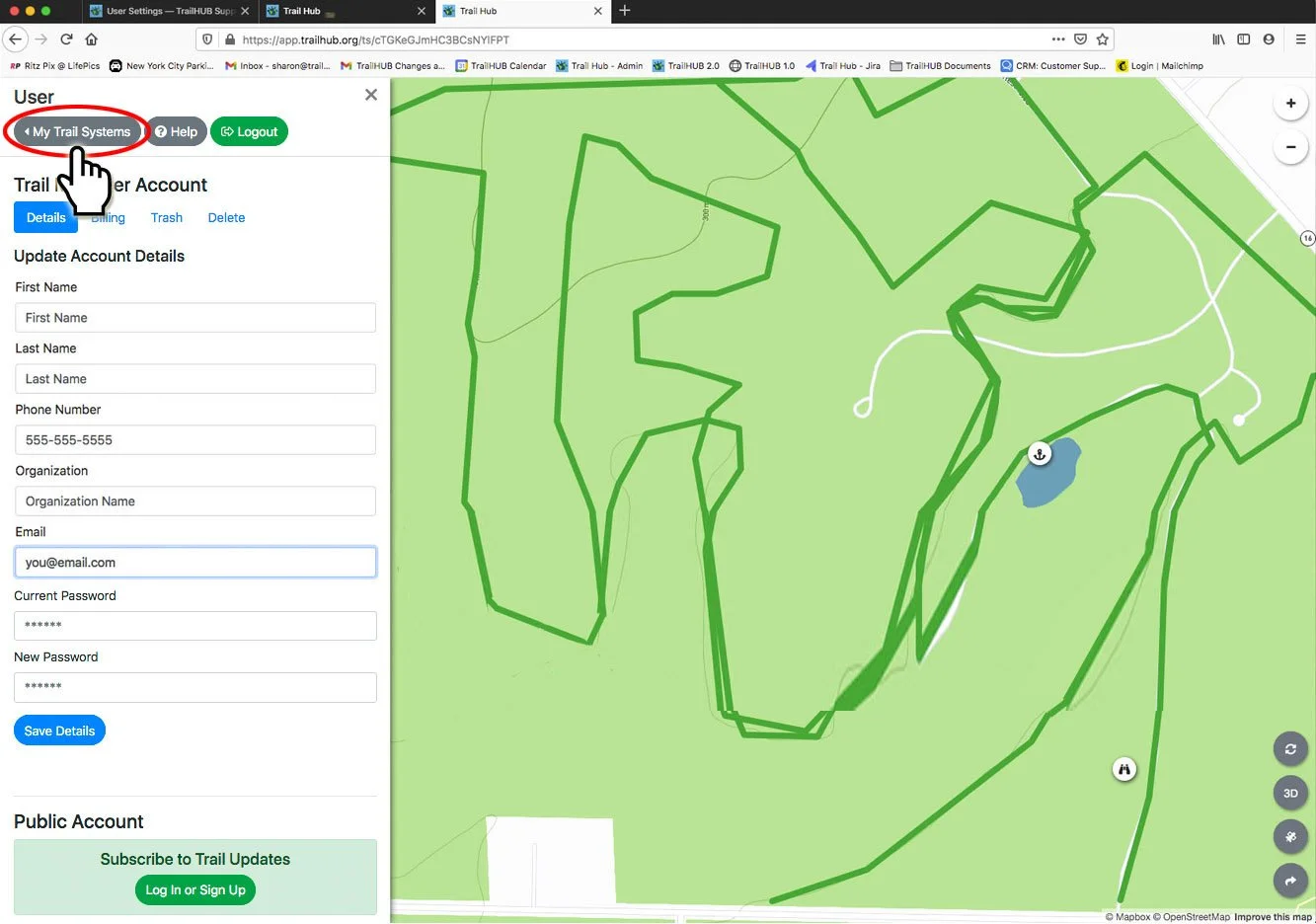
- Select its name to open it.
- Select the heart icon on its card to make it your default, so it opens automatically next time you log in.
Trustees can also use the Grooming Tracker app and create API keys; both act with the same role you have in the web app.