
Updates Overview
Post notices, surface conditions, and snow reports to your whole trail system or to specific trails, and optionally notify subscribers.
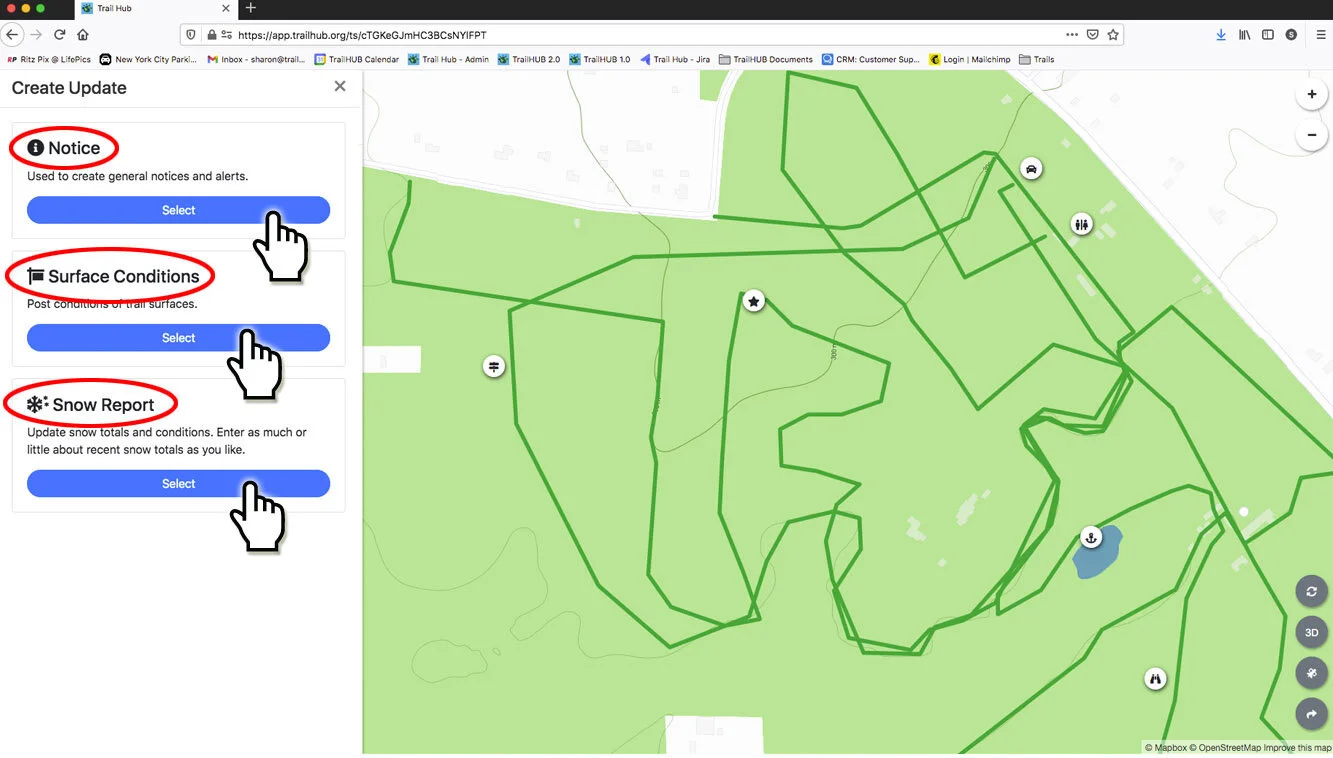
The Updates menu is where you post time-limited information about your trail system. There are three update types:
- Notices – general notices and alerts, with a severity level and an optional link.
- Surface Conditions – one or more conditions (groomed, icy, muddy, and so on) for your trails.
- Snow Reports – snow totals and depths; fill in as many or as few fields as you like.
#Comparing the three update types
| Notice | Surface Conditions | Snow Report | |
|---|---|---|---|
| What it's for | Alerts, announcements, closures, events | Current trail surface (groomed, icy, muddy, etc.) | Base depth, new-snow totals, last snowfall, snowmaking |
| Fields | Description (required), severity (Info, Warning, Danger), More Info Link | Conditions multi-select (required) | Ten optional numeric, date, and time fields |
| Attaches to trails? | Optional (off by default) | Optional (on by default) | Optional (off by default) |
| Notifies subscribers? | Optional toggle when creating | Optional toggle when creating | Optional toggle when creating |
| Where it shows | Top of the Trails menu, or on each attached trail card; also in Digital Signage | Top of the Trails menu, or on each attached trail card; also in Digital Signage | Top of the Trails menu, or on each attached trail card; also in Digital Signage |
| Notification text | "Notice from Trail System: description – link" | "Trail System has posted new surface conditions: link" | "Trail System has posted a new snow report: link" |
Every update, regardless of type, has a required expiration date (and optional time). The update disappears when it expires, and you can extend it later by editing it.
#Posting and editing updates
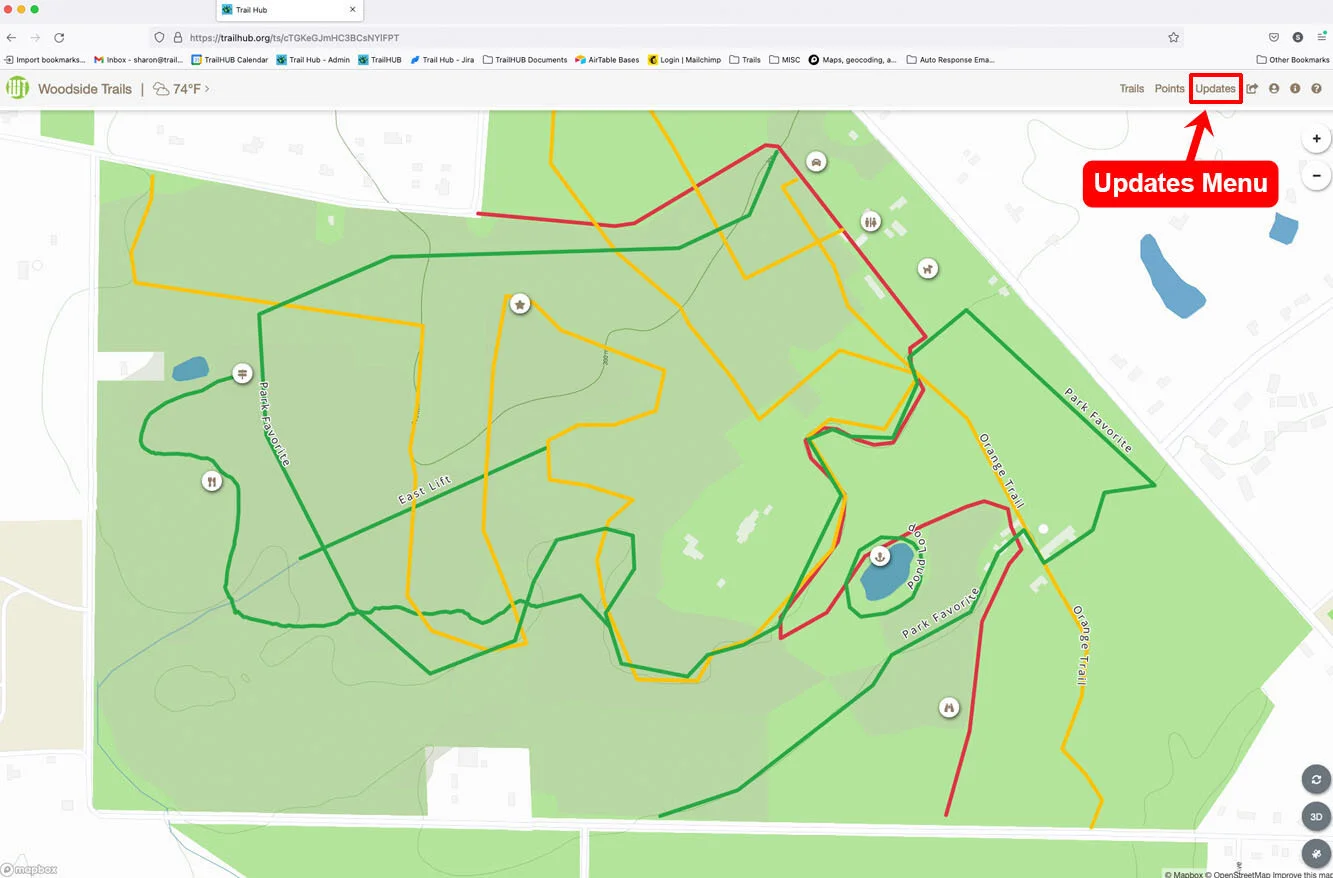
- Select Updates in the top navigation bar.
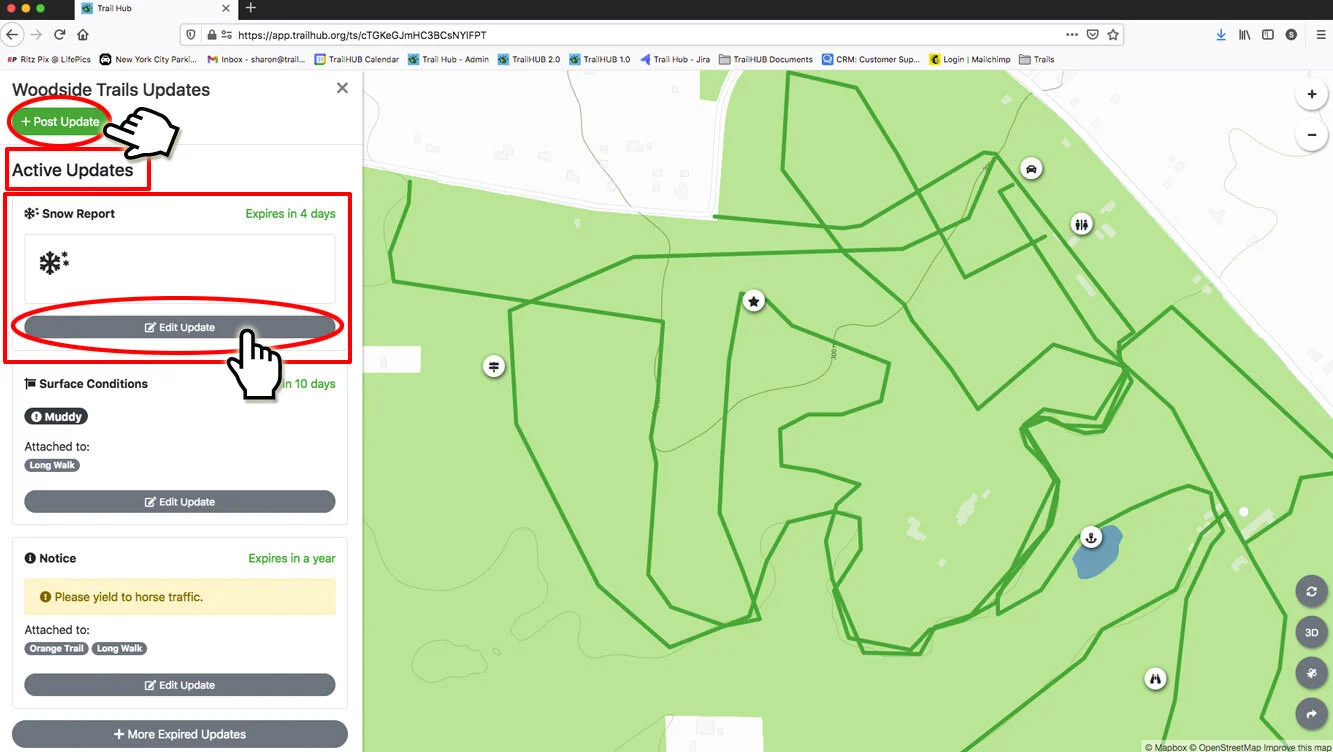
- Select Post Update to open the Create Update drawer, or select Edit Update on any card under Active Updates.
- If you are creating a new update, choose the type:
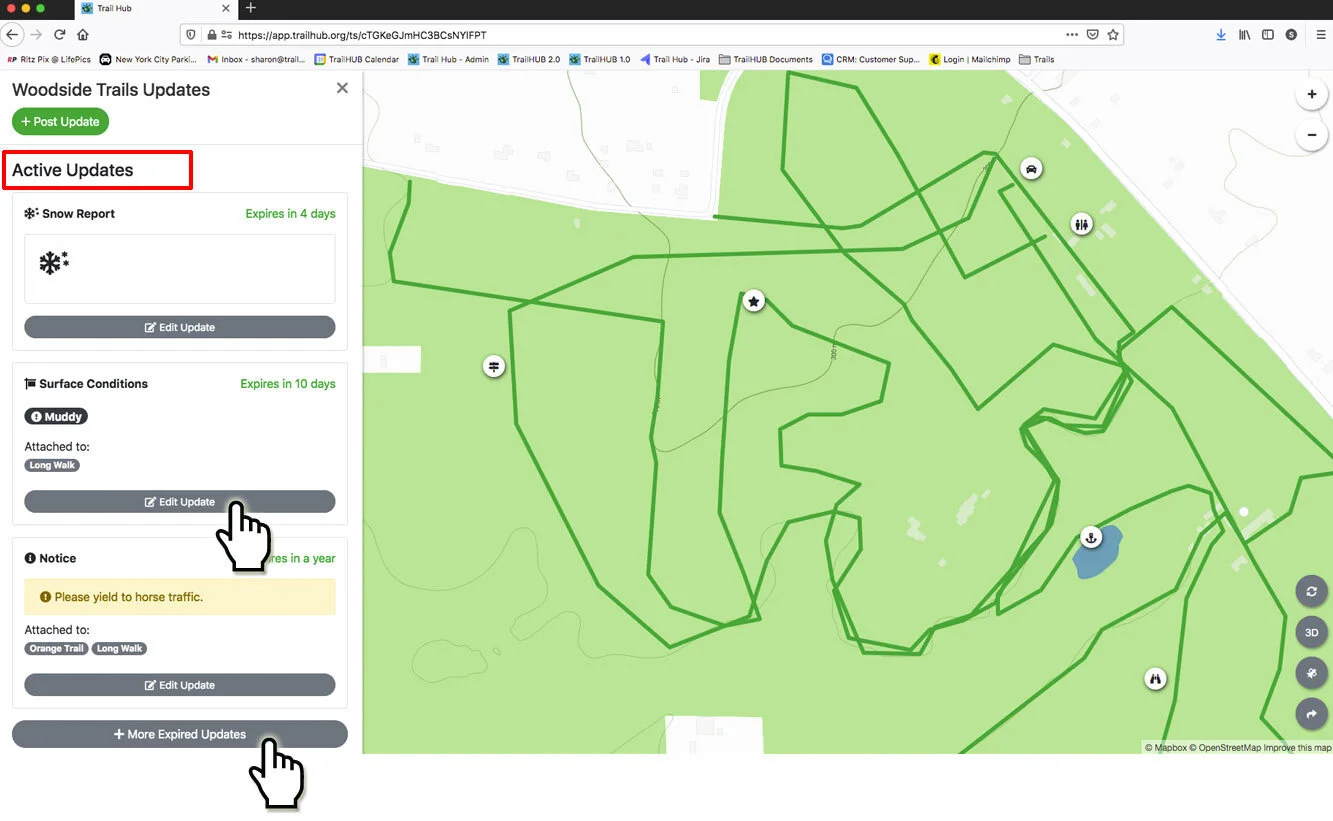
Saved updates appear under Active Updates with their expiration date. Select Edit Update on a card to change or delete it. The Notify Subscribers toggle is only available when creating an update, not when editing.
To see updates that have already expired, select More Expired Updates at the bottom of the list. Expired updates can be edited too, for example to give them a new expiration date.
- Posted updates appear in your Trails menu: at the top if not attached to specific trails, or on each trail card if they are.
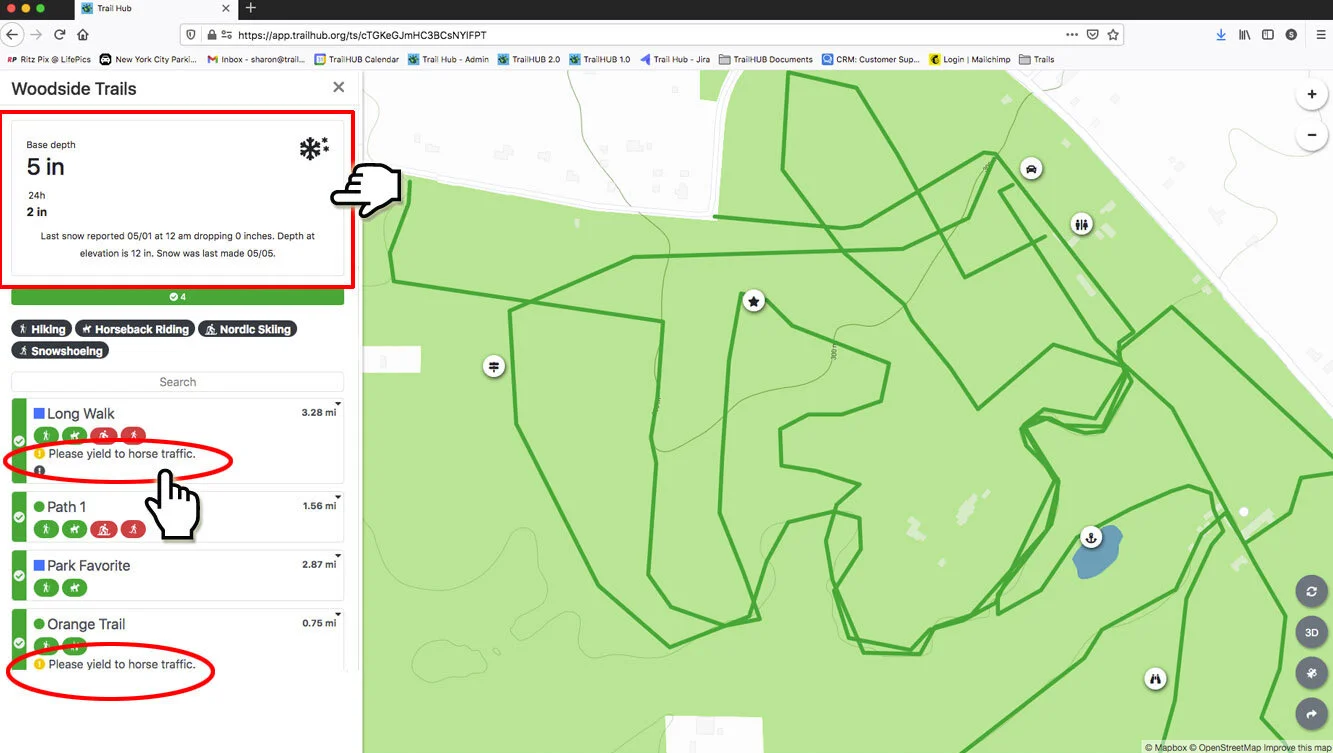
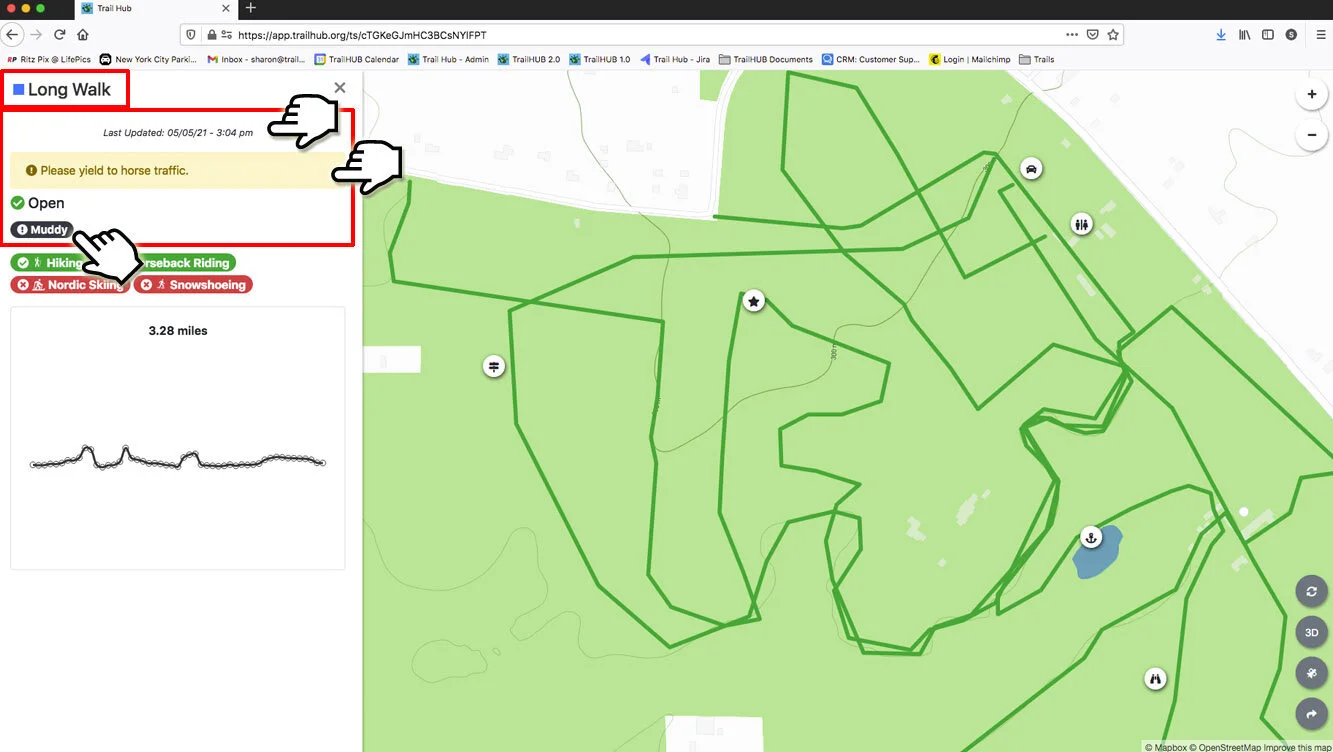
- When an update is attached to a trail, open that trail's card to see the full details and the time the update was posted.
#Notifying subscribers
Each update type has a Notify Subscribers of this Update toggle. When it is on, TrailHUB sends an email and/or SMS text message to everyone who has subscribed to your trail system, according to each subscriber's own notification preferences. Use it sparingly; one or two notifications per day is a good limit. See How subscriber alerts work.
#Posting updates automatically
You do not have to post every update by hand:
- The Management API lets your own software or integrations create, edit, and expire updates.
- The Grooming Tracker app (in beta) records a GPS track while you groom and automatically posts a Groomed surface-conditions update, expiring in 24 hours, for every trail that the track covered by more than 10%. These automatic updates do not notify subscribers.
#In this section
- Notices
Post a general notice or alert, with a severity level and optional link, to your whole trail system or to specific trails.
- Surface Conditions
Post one or more surface conditions, such as groomed, icy, or muddy, for specific trails or your whole trail system.
- Snow Reports
Post snow depths, new-snow totals, and last snowfall and snowmaking details for your trail system or specific trails.