
Edit Trails and Statuses
Update a single trail's details, status, activities, and map line, or delete it.
Trail cards show two kinds of status: the overall trail status (the colored bar on the left edge of the card) and the status of each activity on the trail (the colored activity badges).
- When you set the overall status to Open or Caution, also review each activity's status; they are not changed automatically.
- When you set the overall status to Closed and save, every activity on the trail is set to Closed as well.
- When you set the overall status to None, the trail takes its status from its activities. See Trail statuses explained.
#Edit a trail
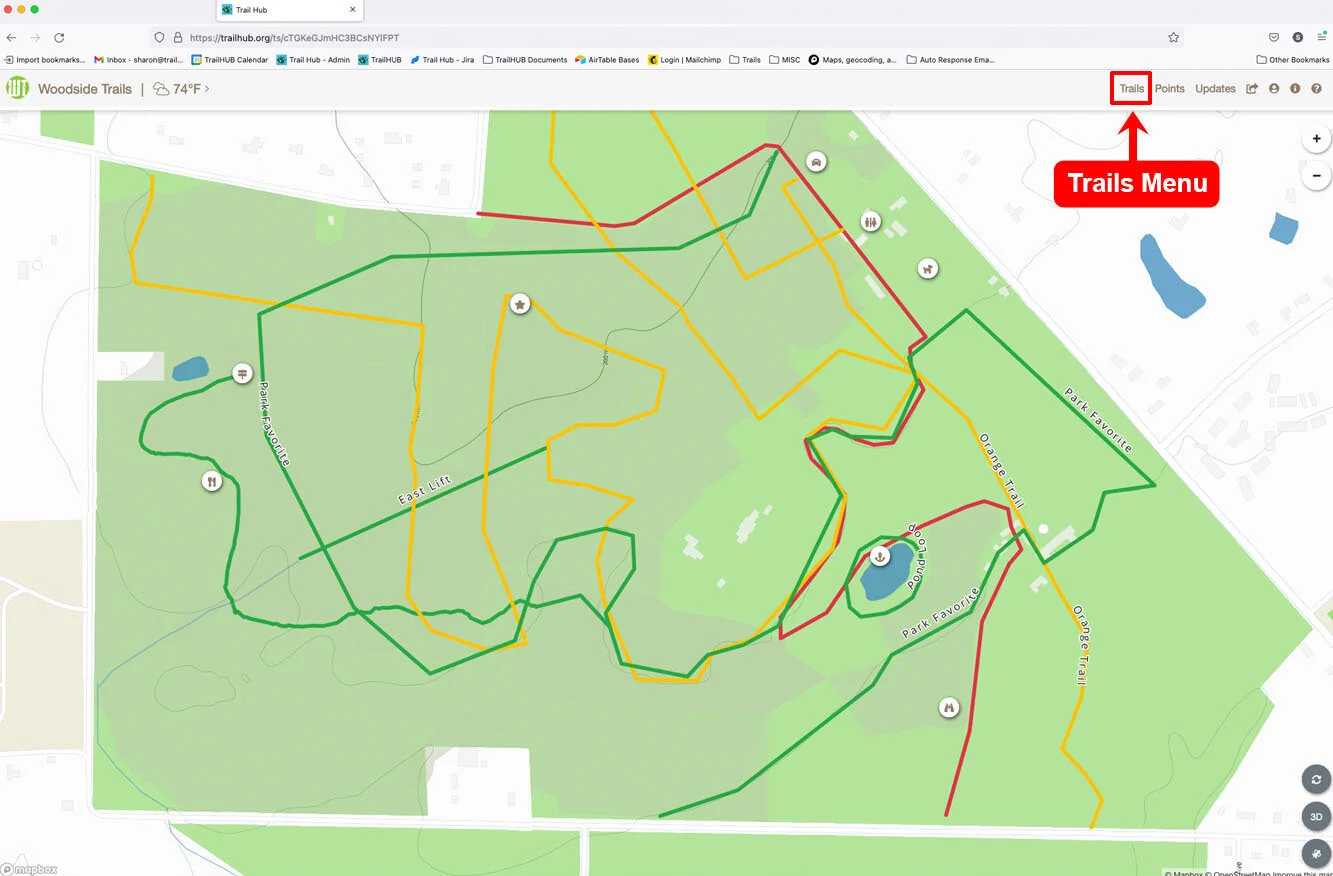
Click Trails in the top navigation bar.
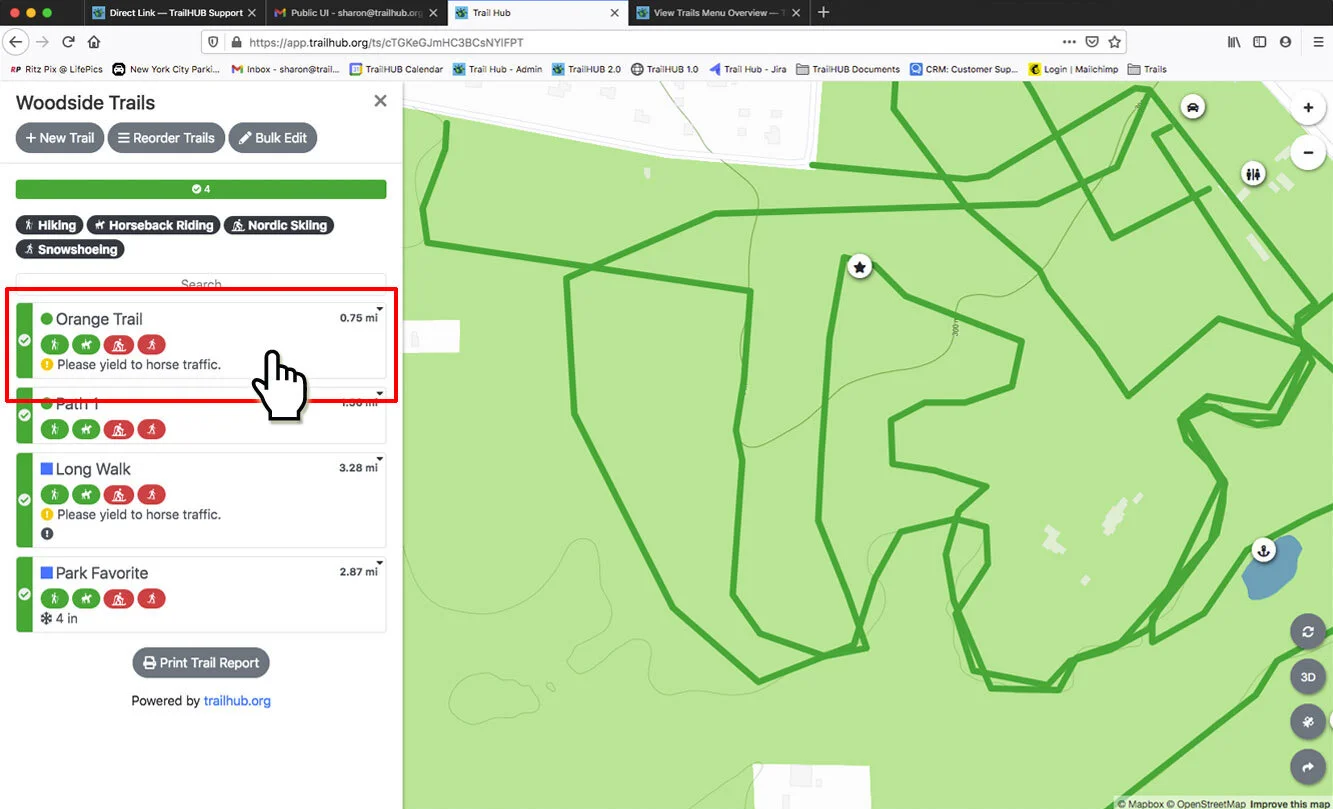
Click the trail card you want to edit.
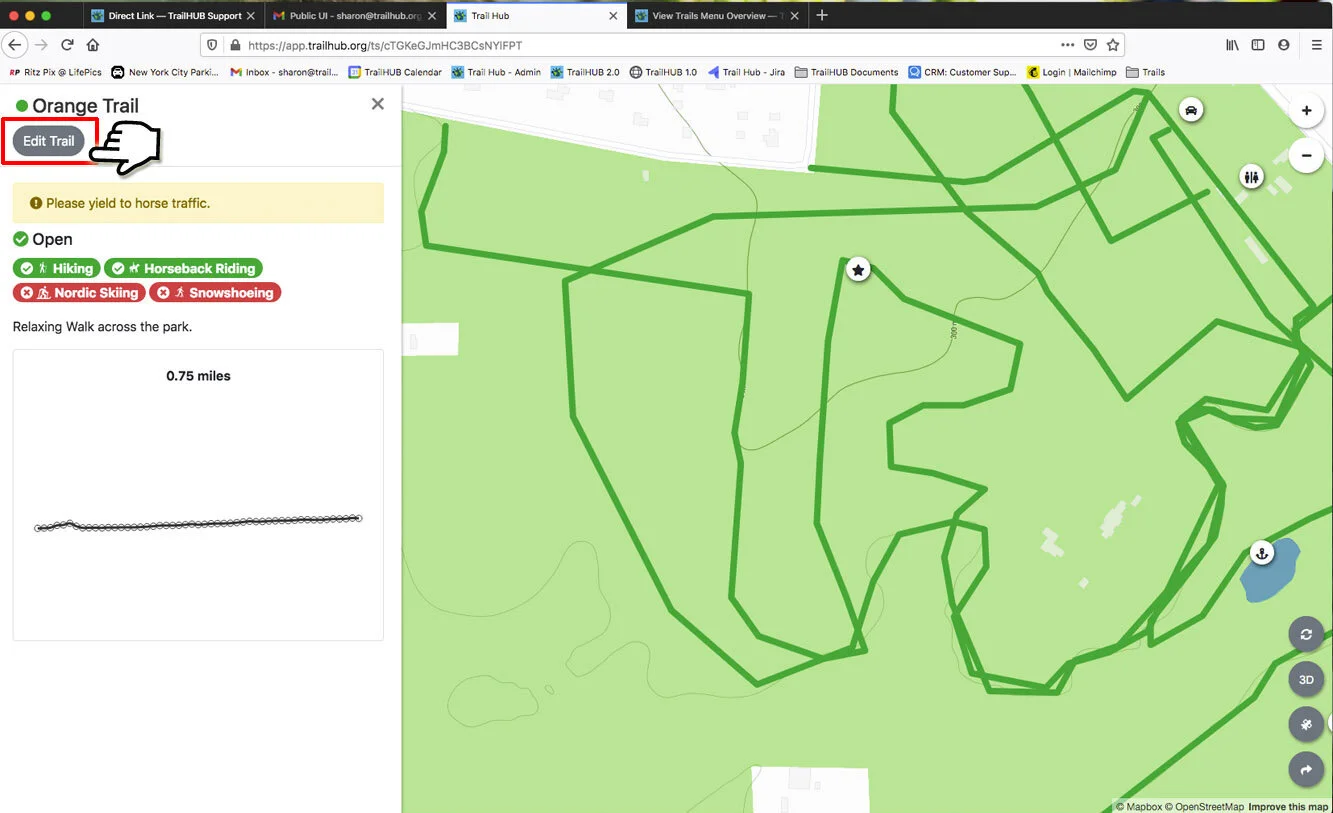
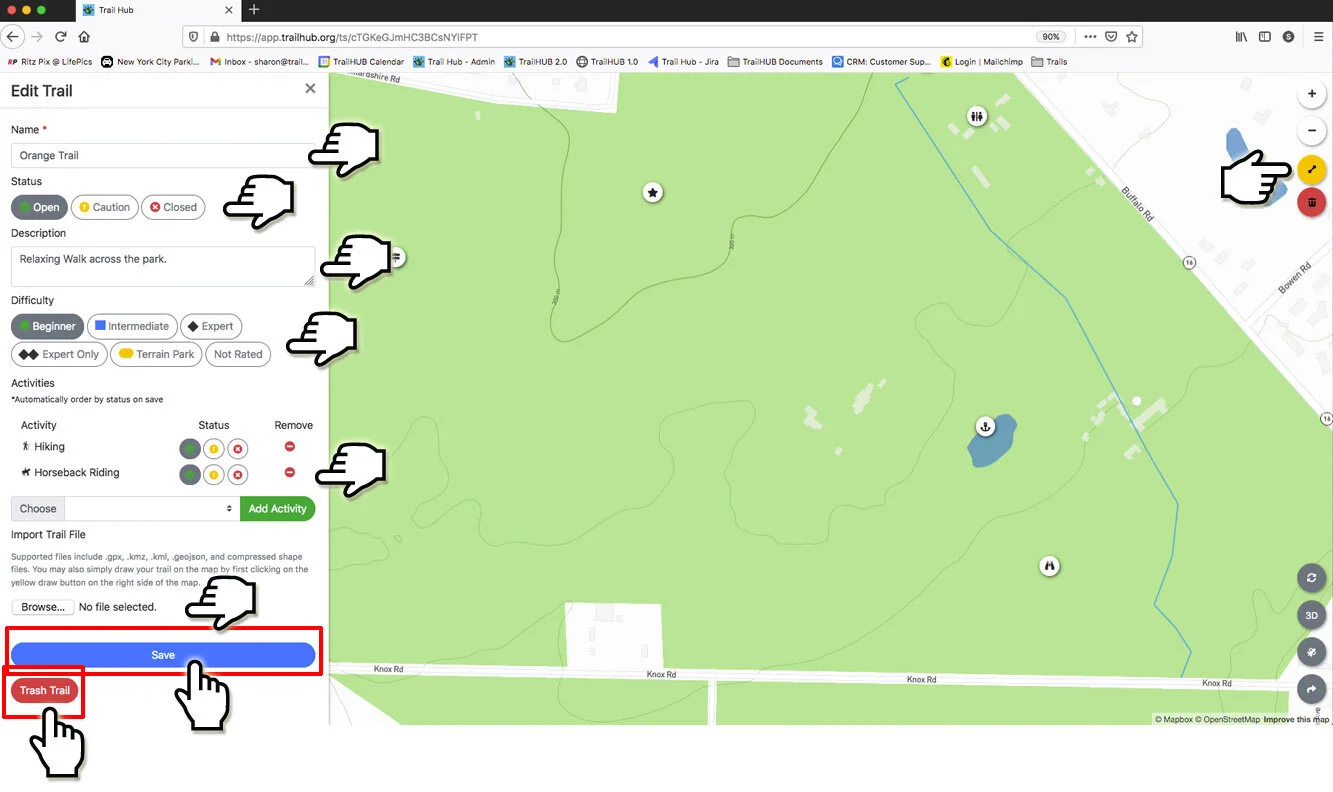
Click Edit Trail at the top of the trail drawer.
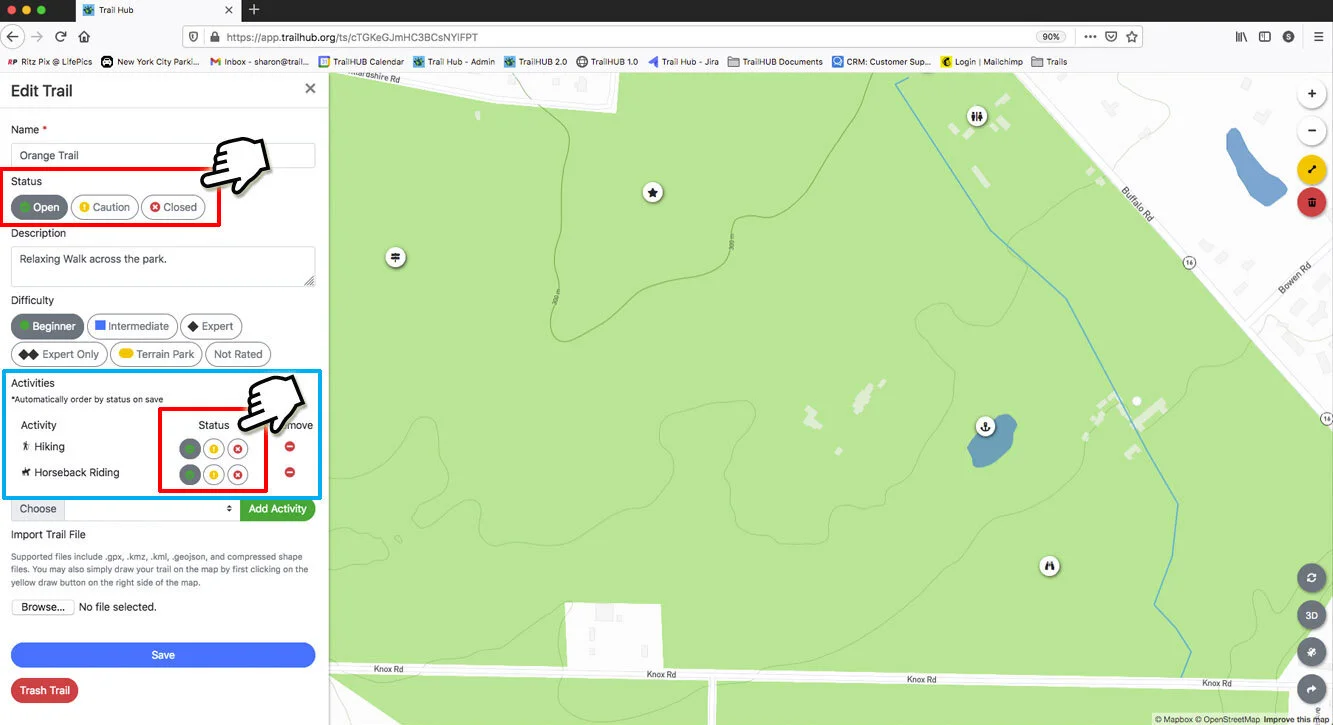
Change any of the following:
- Name
- Type (Standard or Lift)
- Status (Open, Caution, Closed, or None)
- Description
- Categories, if your trail system has any
- Difficulty
- Activities: add an activity by choosing it from the dropdown and clicking Add activity; set each activity's status and difficulty with the small buttons; remove an activity with the red minus icon. Activities are shown in status order (Open, then Caution, then Closed) when the trail is viewed.
- Map line: upload a new file to add or replace the line, or adjust it with the line tool.
- Line Style (Solid or Dashed)
- One Way and Reverse Direction
- Trail Hidden
See Trail fields for details on each.
Click Save. Your trail system is recompiled and the public map updates within a few moments.
#Delete a trail
In the edit form, click Trash Trail at the bottom and confirm. Trashed trails are removed from the list and map.
To change many trails at once, use Bulk edit.