
Create GPS Files in the Field
Record each trail with a GPS tracking app such as Gaia GPS and export it as a GPX or KML file to upload to TrailHUB.
If you do not already have GIS data for your trails, you can record it yourself by walking, riding, or skiing each trail with a GPS tracking app. These steps use Gaia GPS, but any app that exports .gpx or .kml files will work.
#Overview
- Install a GPS tracking app on your phone.
- Record a GPS track of each trail from start to finish and save it.
- Export each track as a .gpx or .kml file (one file per trail).
- Upload each file to the matching trail in TrailHUB.
#Install Gaia GPS
#Record a track for each trail
Tip: keep GPS/location on and turn mobile data off while recording to save battery and improve accuracy. On wide trails, stay near the center.
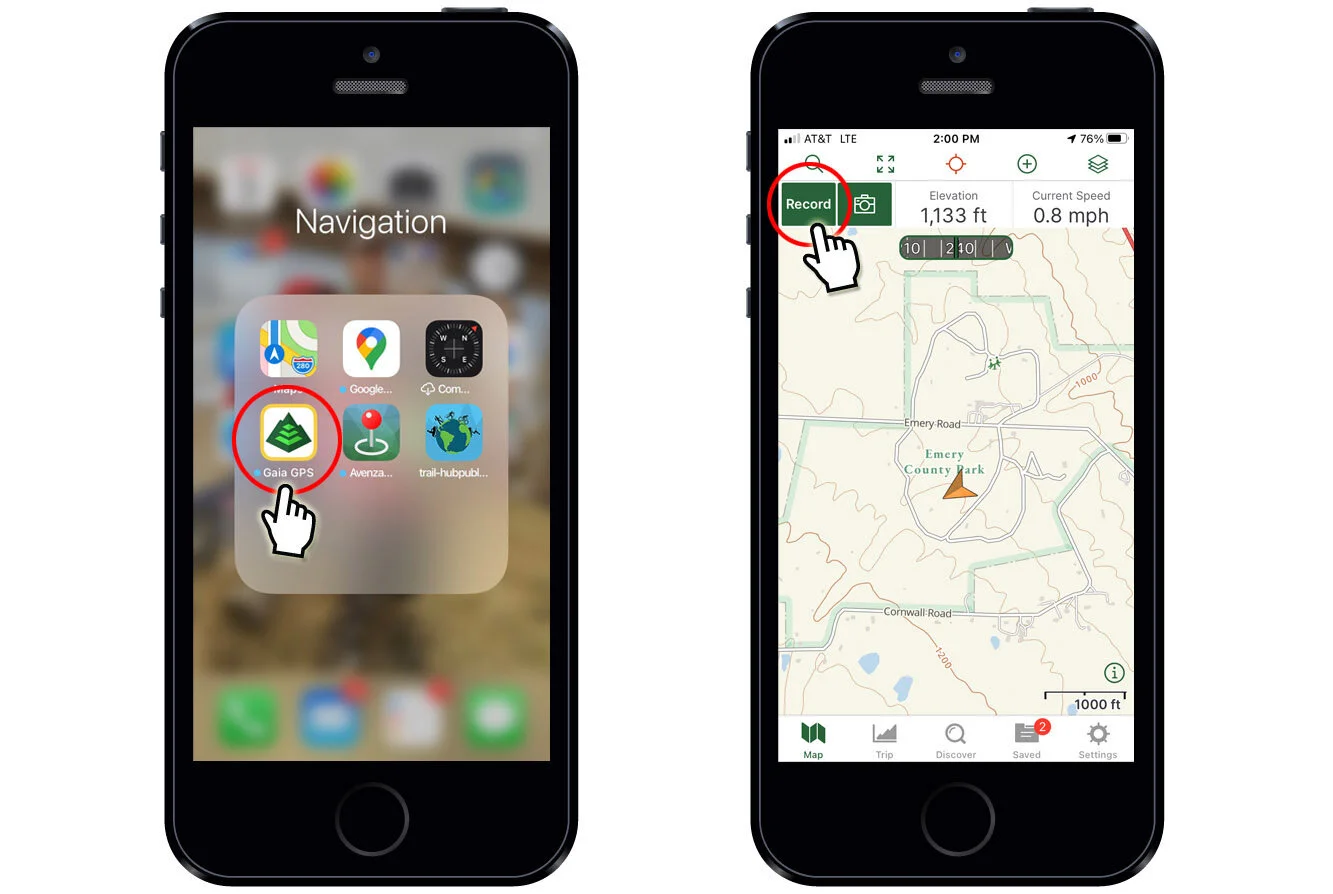
Open Gaia GPS.
At the start of the trail, tap Record, then travel the trail end to end without stopping if possible.
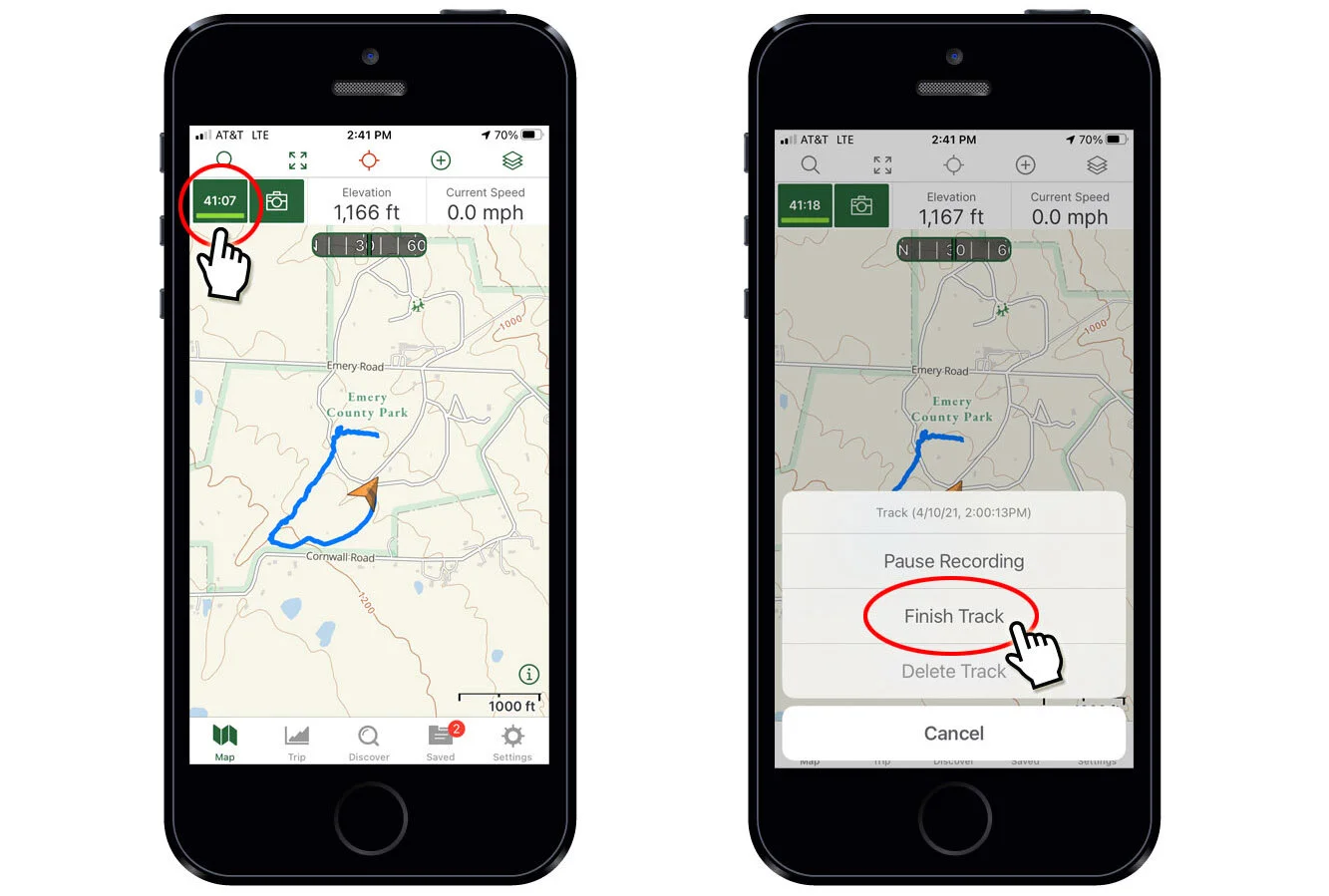
At the end of the trail, tap the timer, then tap Finish Track.
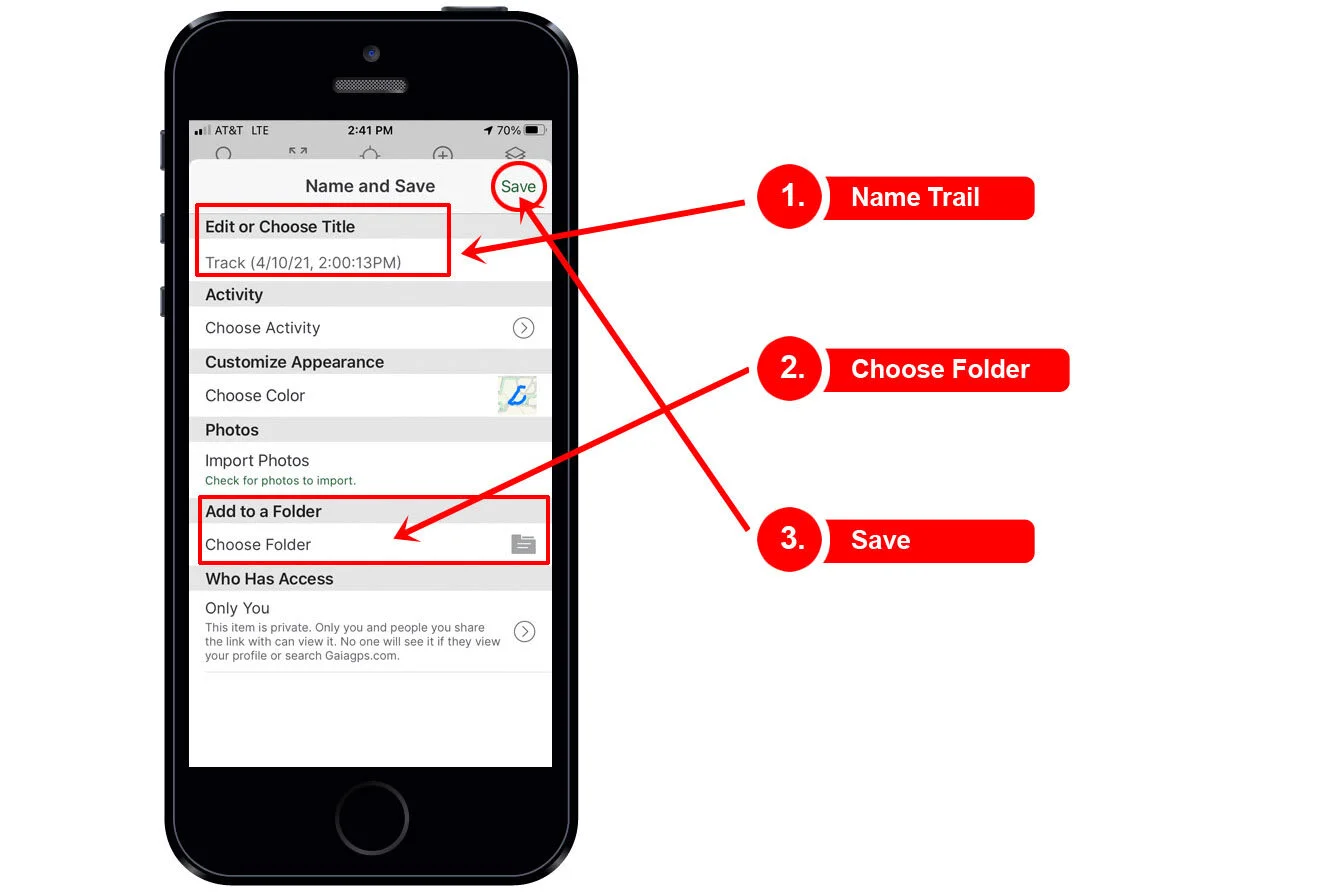
Name the track exactly as it appears on your trail signs, choose a folder, and tap Save.
#Export the files
Export or download each track individually, one file per trail. Gaia GPS documents the process for each platform:
- Export data as GPX or KML from the iOS app
- Export data as GPX or KML from the Android app
- Export data as GPX or KML from gaiagps.com
#Upload to TrailHUB
Follow Upload a trail file to attach each file to its trail. If you export all your tracks into one file instead, use Upload one file with many trails.